HOME - Hybrid Active Directory, Microsoft Entra ID & Microsoft 365 Deployment
 Hybrid Active Directory, Microsoft Entra ID & Microsoft 365 Deployment
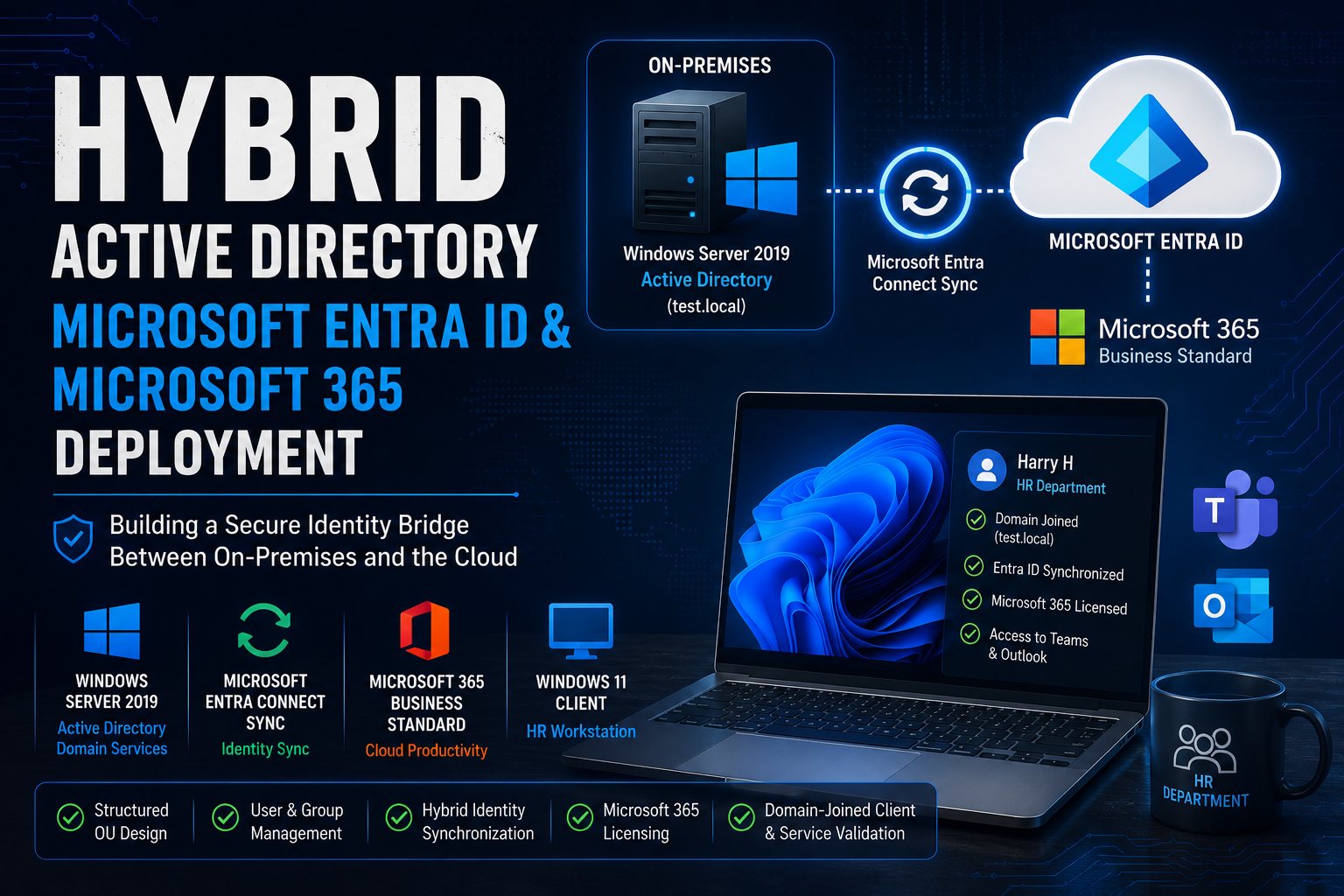
Hybrid Active Directory, Microsoft Entra ID & Microsoft 365 Deployment
Project: — System Administration Portfolio Lab
Role: System Administrator
Environment: VMware • Windows Server 2019 • Windows 11
Identity Model: On-premises Active Directory synchronized to Microsoft Entra ID
Cloud Platform: Microsoft 365 Business Standard
Status: Hybrid identity and HR workstation deployment validated
Project Overview
This lab simulates the deployment of a small production-style hybrid identity environment for JohnBrownSchool. The objective was to build an on-premises Active Directory foundation, organize users and departments, extend those identities into Microsoft Entra ID, license users for Microsoft 365, and validate the environment from an end-user Windows 11 workstation.
The environment was built in VMware on a Windows host. A Windows Server 2019 virtual machine was used for Active Directory Domain Services (AD DS), while Windows 11 virtual machines represented client endpoints. The on-premises forest used test.local. Microsoft Entra Connect Sync was installed and configured to bridge the local directory with the Bench Lab Microsoft 365 / Entra tenant. A verified johnbrown.pro sign-in suffix was also introduced so selected synchronized identities could use a routable cloud-style user principal name.
The final validation focused on the HR user Harry H. A Windows 11 endpoint was domain-connected, Harry authenticated with his corporate domain credentials, his synchronized Microsoft 365 identity was registered on the device, and access to Outlook and Microsoft Teams was confirmed.
Project Objectives
Deploy Windows Server 2019 in VMware and configure Active Directory Domain Services.
Create a structured OU design for Admission, HR, Students, IT and Computers.
Provision departmental user accounts and security groups for role-based administration.
Create and configure a Microsoft 365 Business Standard tenant.
Install Microsoft Entra Connect Sync and synchronize on-premises identities and groups to Microsoft Entra ID.
Use a verified johnbrown.pro UPN suffix for selected synchronized users.
Assign Microsoft 365 Business Standard licenses to the project users.
Deploy an HR Windows 11 workstation, join it to the test.local domain and validate domain authentication.
Register the HR user’s organizational account and validate Microsoft 365 services including Teams and Outlook.
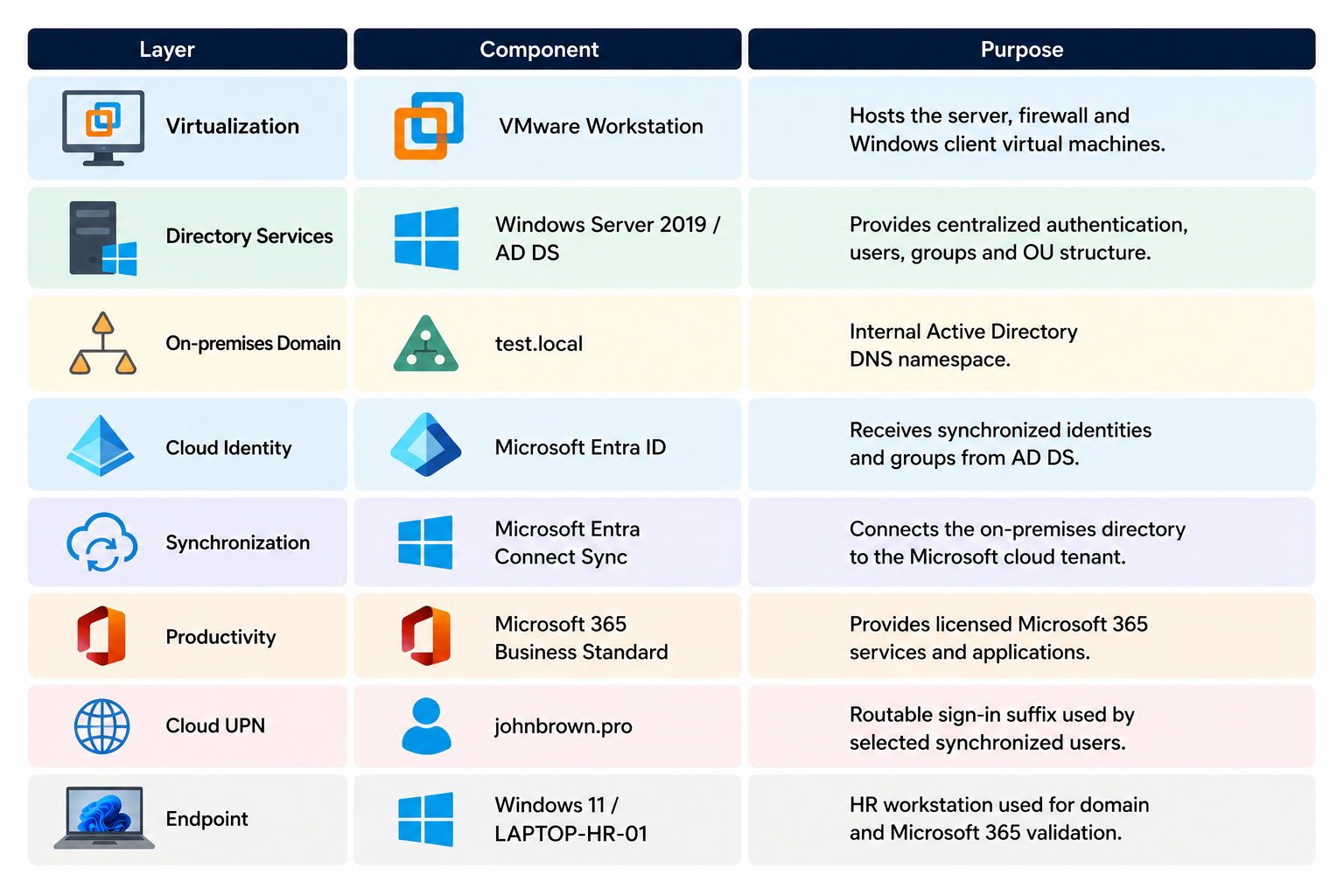
Lab Architecture
Phase 1 — Active Directory Foundation
4.1 Organizational Unit Design
I created a hierarchical Active Directory structure under the JohnBrownSchool root OU. Departmental OUs were created for Admission, HR, Students and IT, with a separate Computers OU for managed endpoints. This structure separates objects by business function and creates a clean foundation for future Group Policy, delegation and administrative scoping.
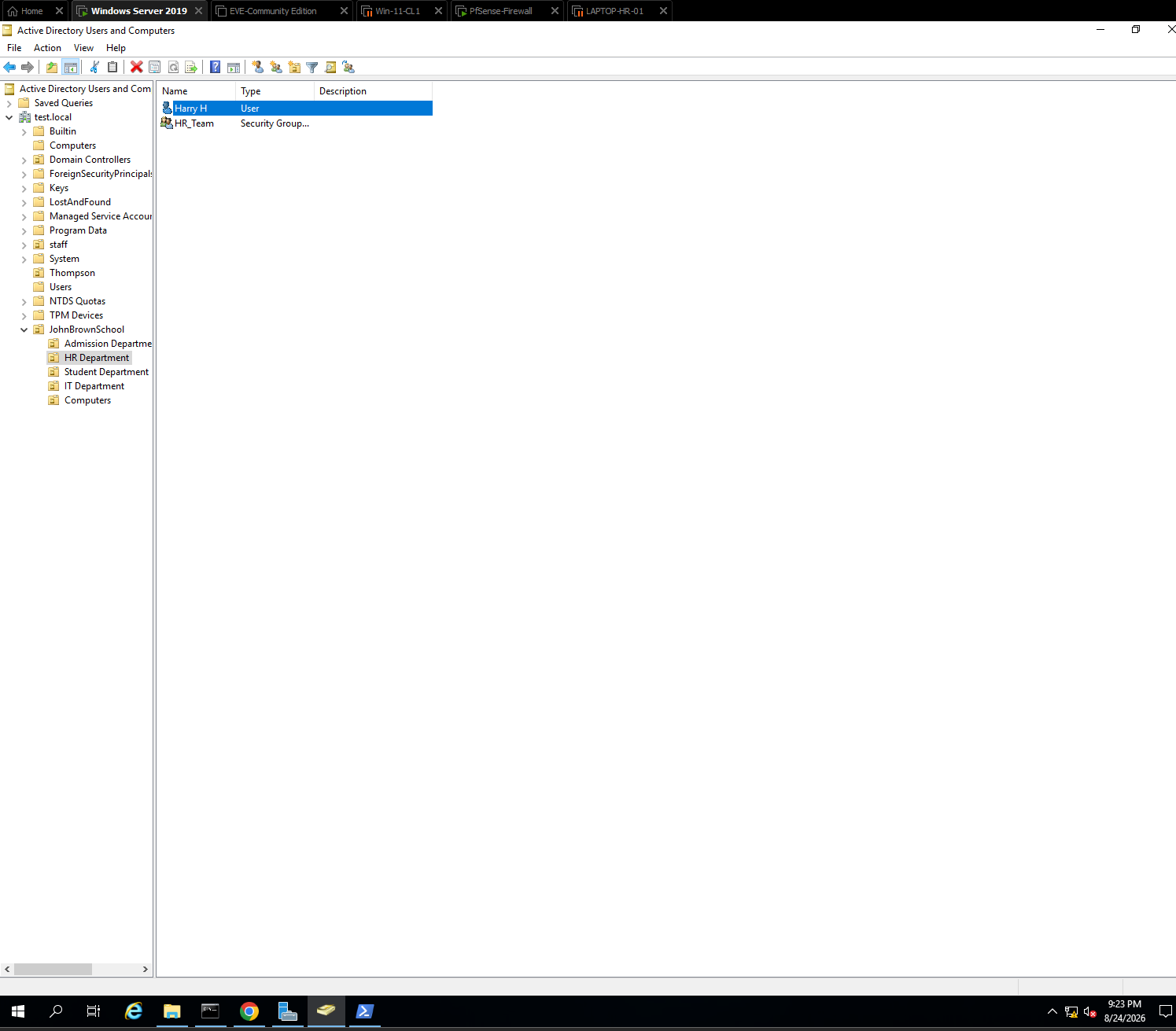
Figure 1 — Active Directory OU structure.
Active Directory Users and Computers shows the JohnBrownSchool hierarchy. The HR Department contains the Harry H user and HR_Team security group. This screenshot demonstrates that users and groups were organized by department rather than being left in default containers.
4.2 User and Security Group Provisioning
Departmental identities were created for the project and paired with security groups. The design followed the principle of assigning access through groups rather than directly to individual users. This makes the environment easier to administer and provides a scalable basis for role-based access control.
The project identities were Aaron A (Admission), Harry H (HR), Polly P (Students), and Robert R (IT). Corresponding departmental security groups were created and users were placed into their appropriate groups.
Phase 2 — Microsoft 365 Tenant and Hybrid Identity
5.1 Microsoft 365 Business Standard Tenant
I created and accessed a Microsoft 365 Business Standard tenant named Bench Lab. The tenant provides the cloud side of the lab and exposes Microsoft Entra ID, Microsoft 365 licensing, Outlook, Teams and other productivity services.
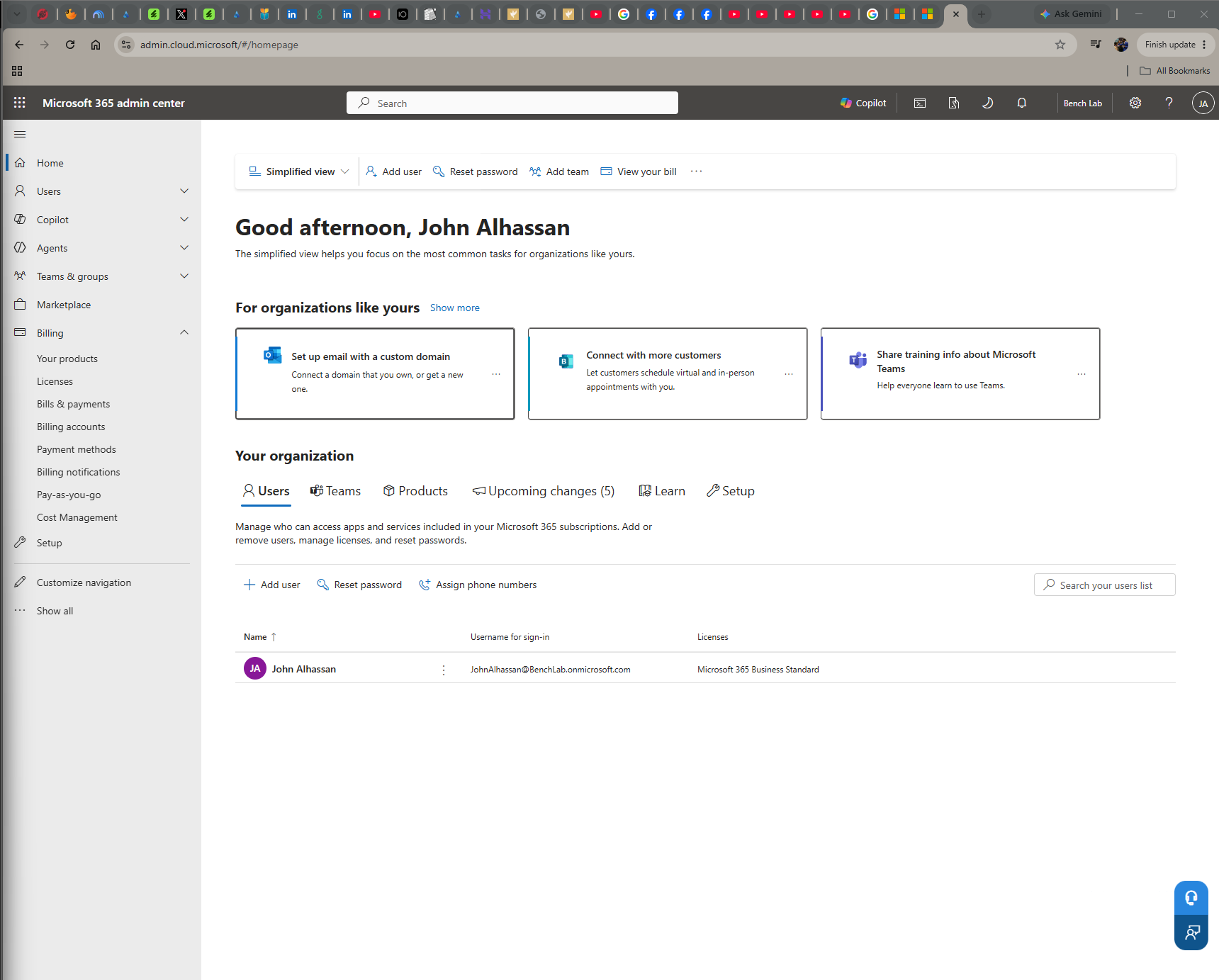
Figure 2 — Microsoft 365 tenant.
The Microsoft 365 admin center shows the Bench Lab tenant and the Microsoft 365 Business Standard subscription. This establishes the cloud environment used for licensing and application access.
5.2 Microsoft Entra Connect Sync Deployment
Microsoft Entra Connect Sync was installed on the Windows Server environment and configured to connect the test.local Active Directory forest to the Microsoft Entra tenant. During configuration, the connector establishes the synchronization relationship and installs supporting components, including the Entra Connect Health Agent.
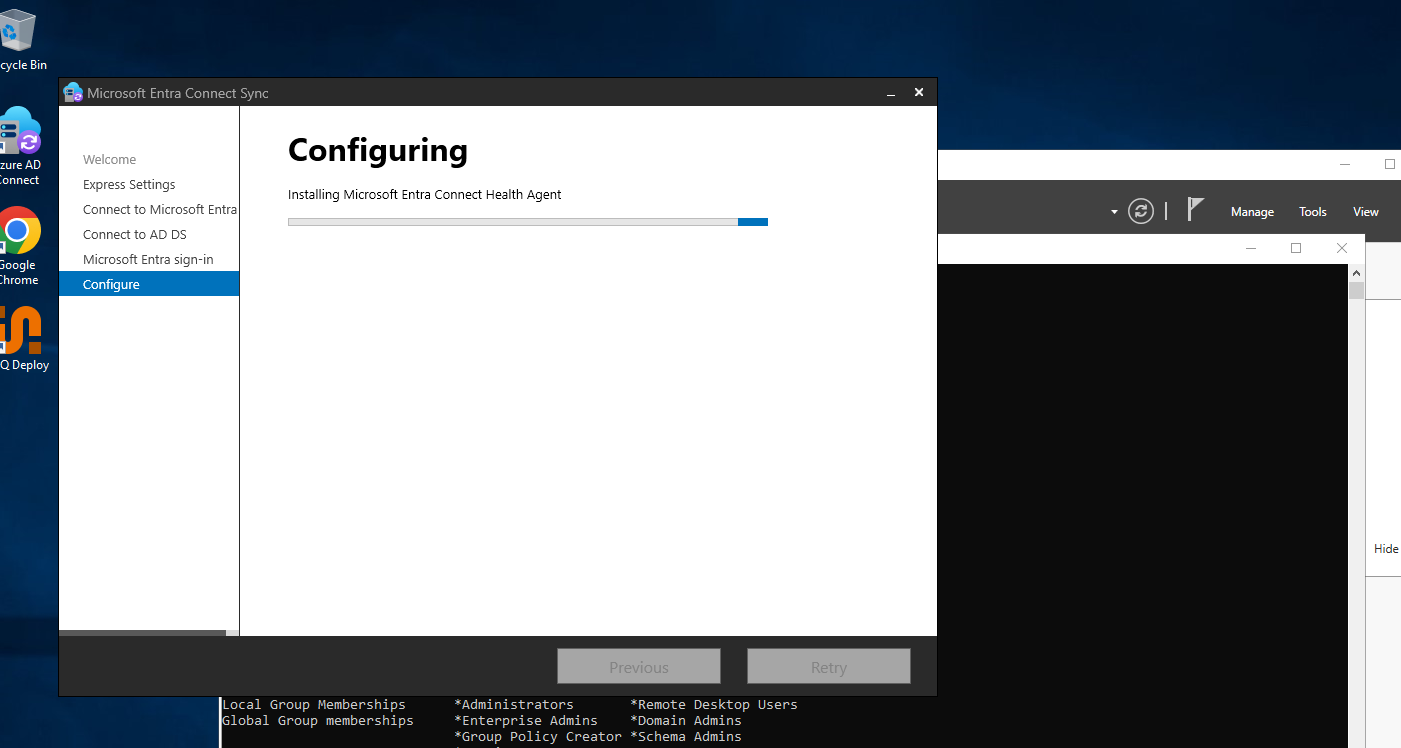
Figure 3 — Entra Connect Sync deployment.
The configuration process is shown installing the Microsoft Entra Connect Health Agent. This is evidence of the server-side hybrid identity synchronization component being deployed.
5.3 Cloud User Synchronization
After synchronization completed, on-premises Active Directory users appeared in Microsoft Entra ID. The Entra user list displayed the on-premises synchronization state for synchronized objects, allowing cloud administrators to distinguish hybrid identities from cloud-only accounts.
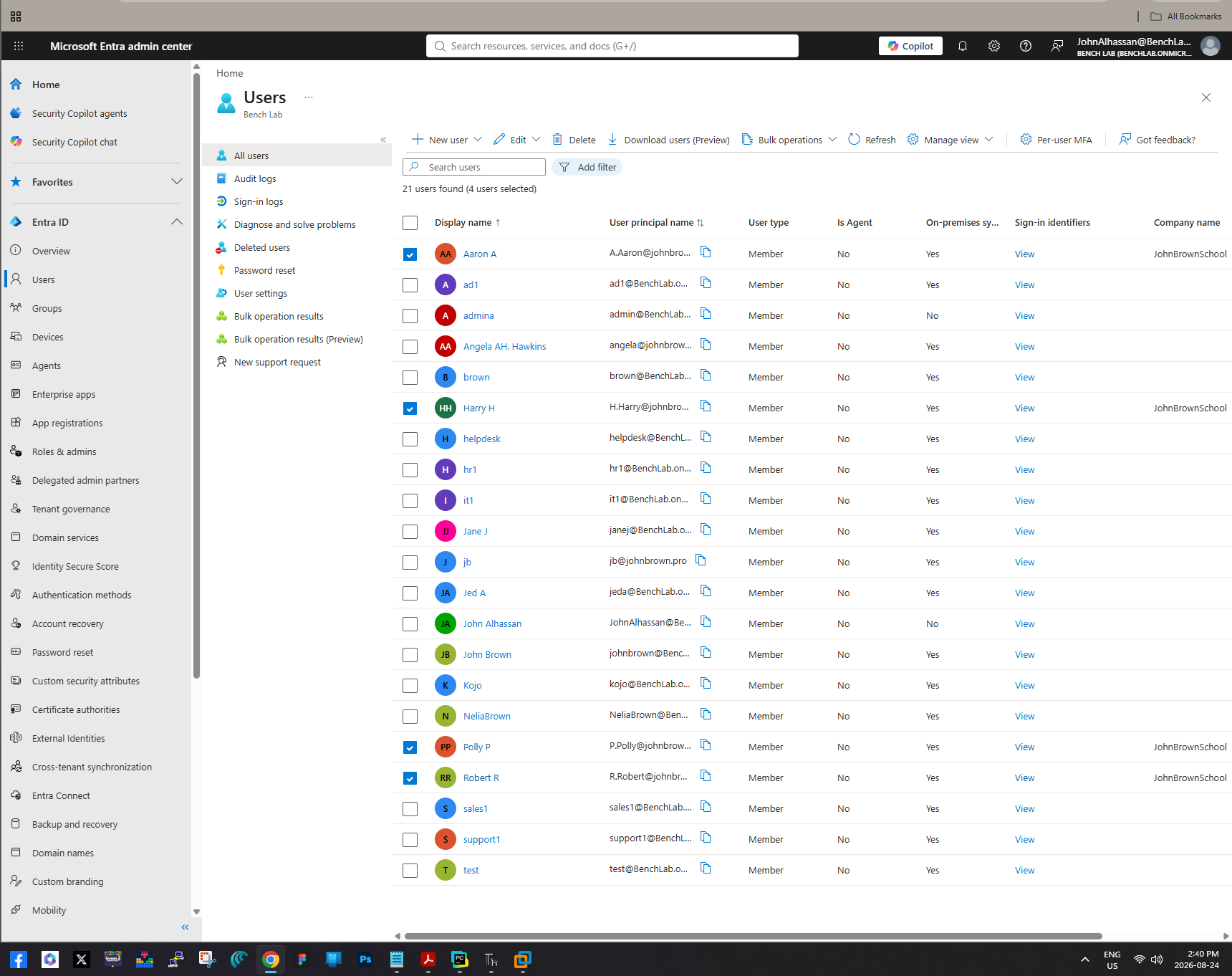
Figure 4 — Synchronized users.
The Entra ID user list shows the project accounts after synchronization from Windows Server Active Directory. The synchronization indicators demonstrate that these identities originate from the on-premises directory.
5.4 Group Synchronization
The hybrid configuration also synchronized on-premises security groups. This is important because identity synchronization is more useful when organizational membership and access-control structures can follow users into the cloud. The Entra Groups overview confirmed that on-premises groups were present in the tenant.
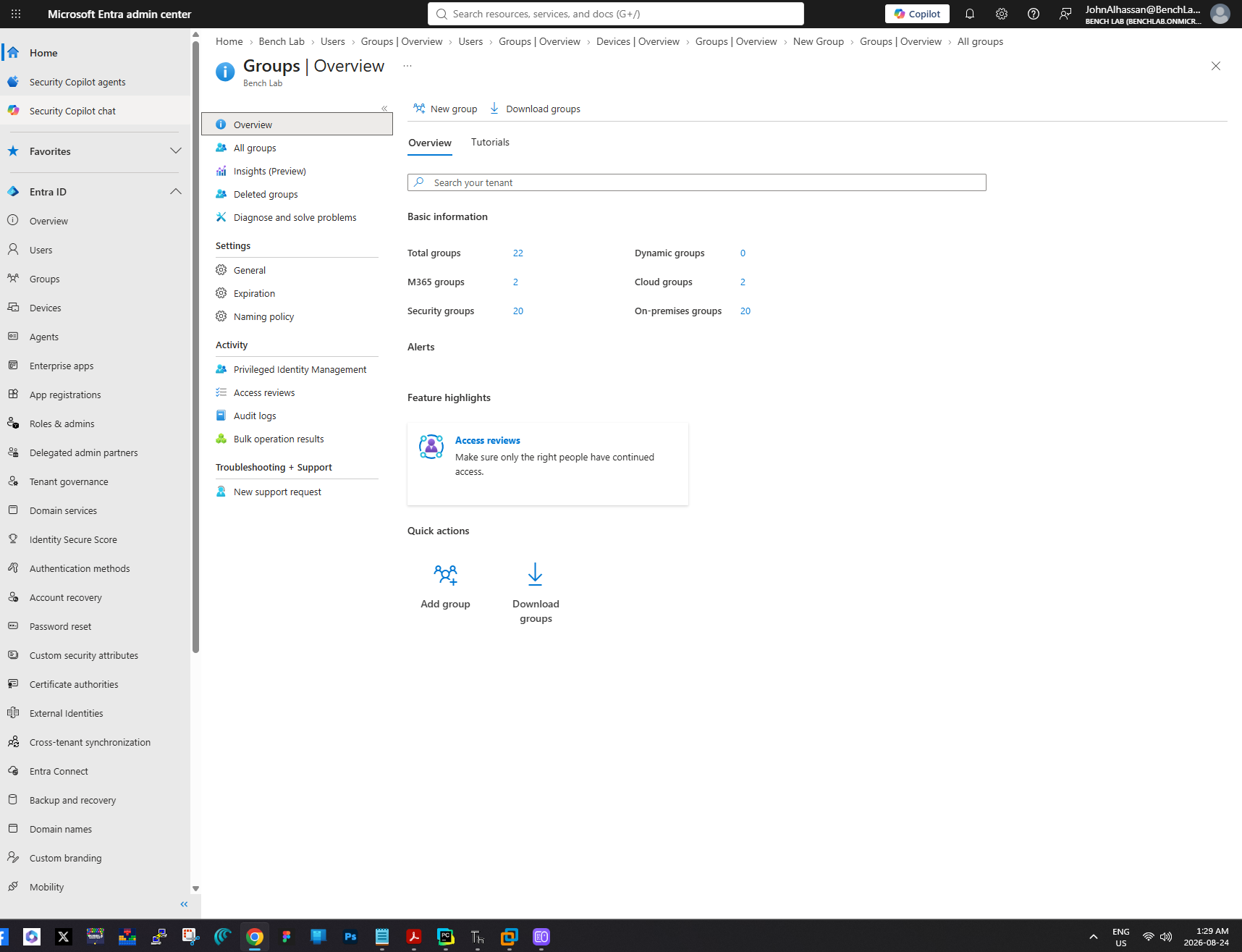
Figure 5 — Synchronized security groups.
The Microsoft Entra Groups view shows on-premises security groups alongside cloud groups, demonstrating that the hybrid synchronization scope includes organizational group objects.
5.5 Routable User Principal Name
The local AD domain uses test.local, which is appropriate for the isolated lab but is not a publicly routable cloud sign-in suffix. I added johnbrown.pro as an alternative UPN suffix and used it for selected users. This allows a user to retain an on-premises AD account while signing in to Microsoft 365 with a familiar public-domain identity.
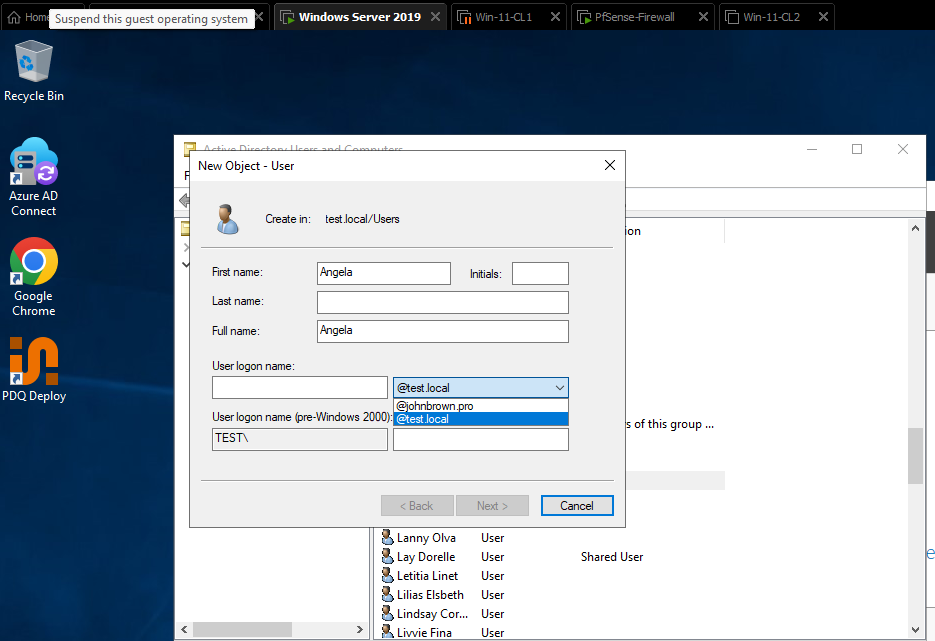
Figure 6 — Alternative UPN suffix.
Active Directory user creation displays both @test.local and @johnbrown.pro as available UPN suffixes. This supports consistent Microsoft 365 sign-in names while retaining test.local as the internal AD domain.
5.6 Validating Group Membership in Entra ID
I inspected synchronized user objects in Microsoft Entra ID to verify that the cloud identity retained the expected group relationships. For example, Aaron A showed membership in the on-premises Admission_Team security group as well as the cloud Bench Lab Microsoft 365 group.
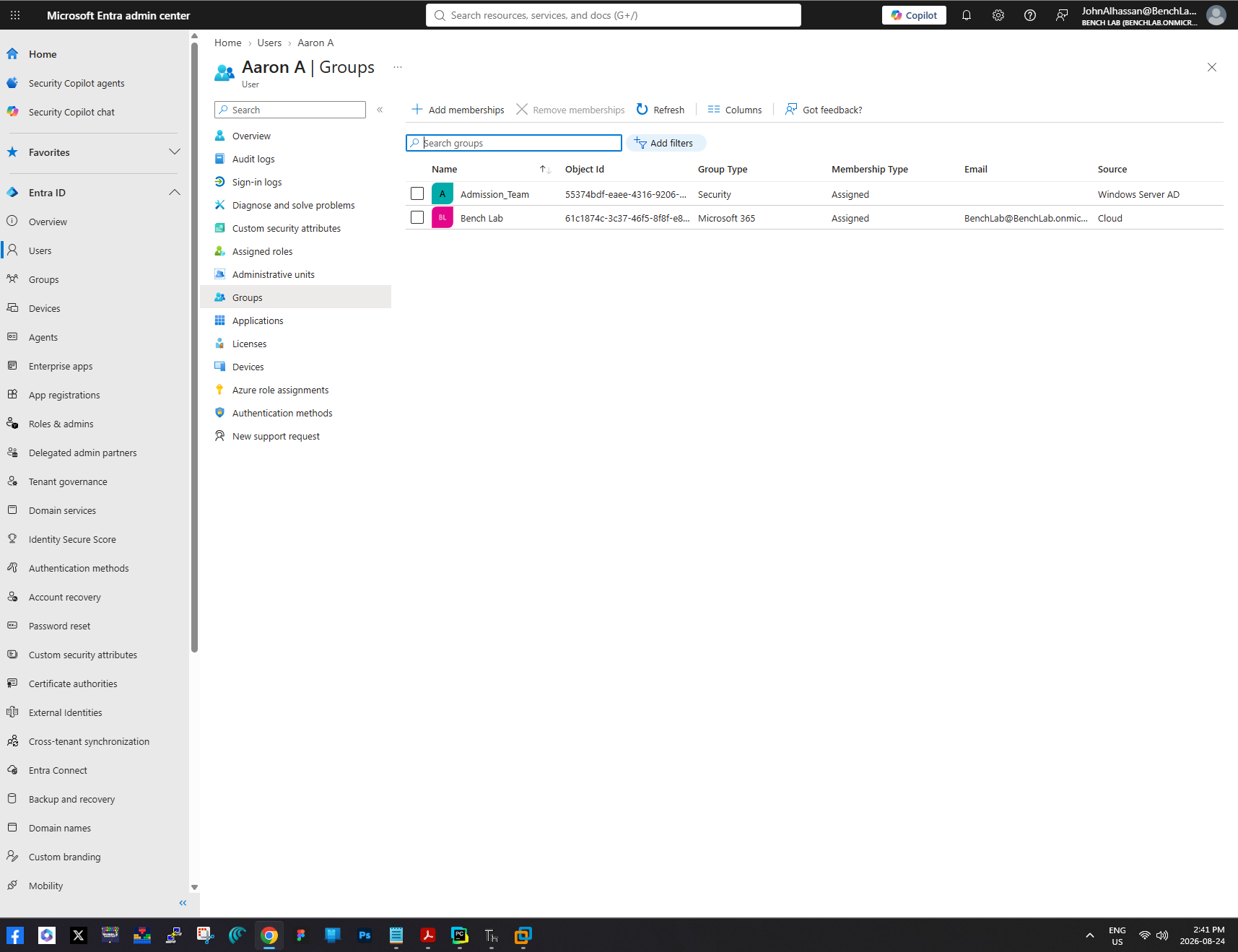
Figure 7 — Hybrid group membership.
Aaron A’s Entra ID memberships show Admission_Team sourced from Windows Server AD and Bench Lab as a cloud Microsoft 365 group. This demonstrates how synchronized and cloud-native group relationships can coexist for the same user.
Phase 3 — Microsoft 365 Licensing
The synchronized project users initially appeared in Microsoft 365 without product licenses. I then assigned Microsoft 365 Business Standard licenses to the project accounts. Licensing transforms a synchronized identity from a directory object into a user that can consume licensed Microsoft 365 services such as Exchange Online and Teams.
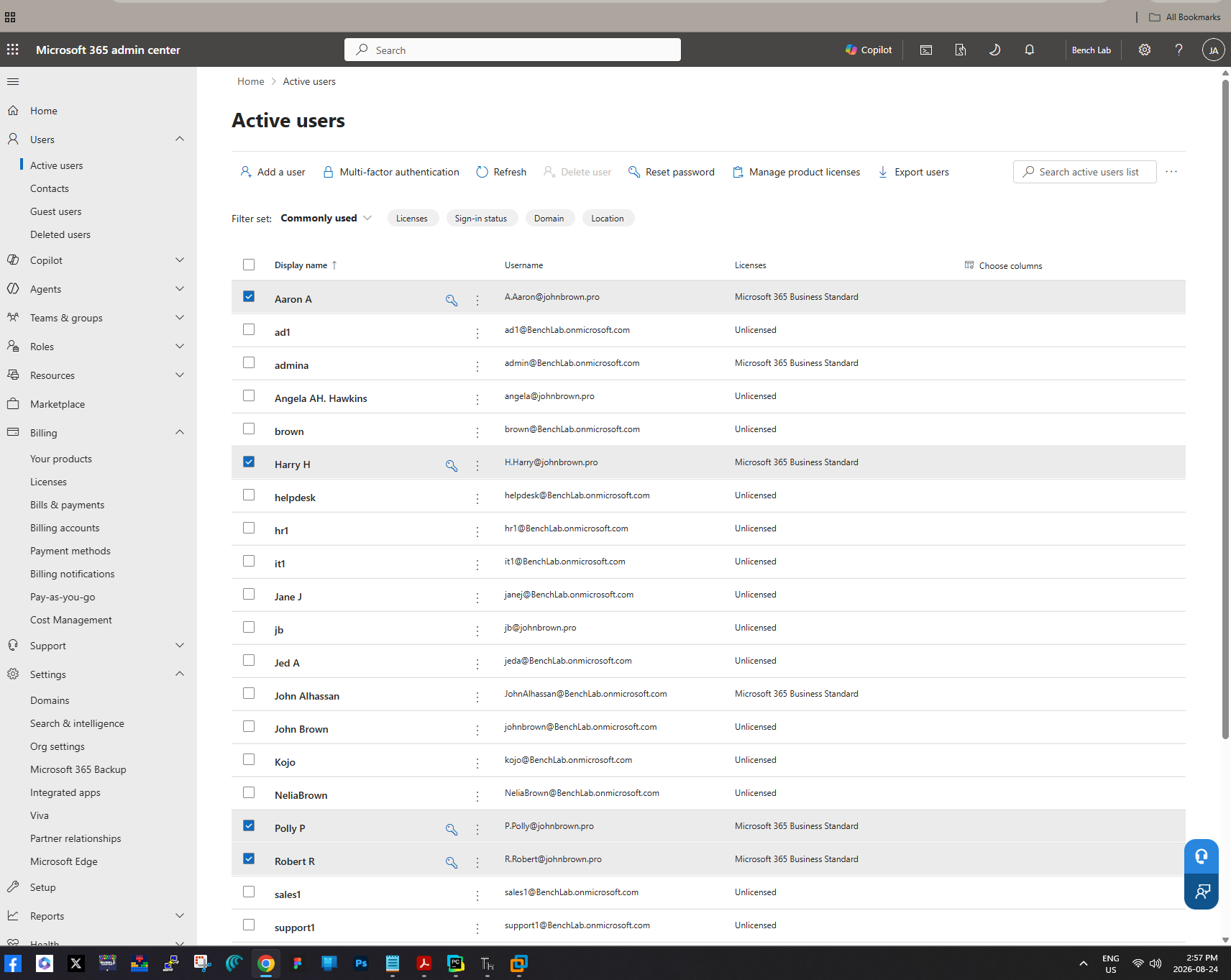
Figure 8 — License assignment.
The Microsoft 365 Active users view shows Business Standard licensing applied to the project users, including Aaron A, Harry H, Polly P and Robert R. This prepares the synchronized identities to use Microsoft 365 workloads.
Phase 4 — HR Workstation Deployment and Domain Authentication
7.1 Network and Domain Connectivity
A Windows 11 virtual machine was prepared as the HR endpoint. Network configuration showed the test.local DNS suffix and an IPv4 address on the lab network. This confirmed that the workstation was operating inside the logical environment required to locate and authenticate against the Active Directory domain.
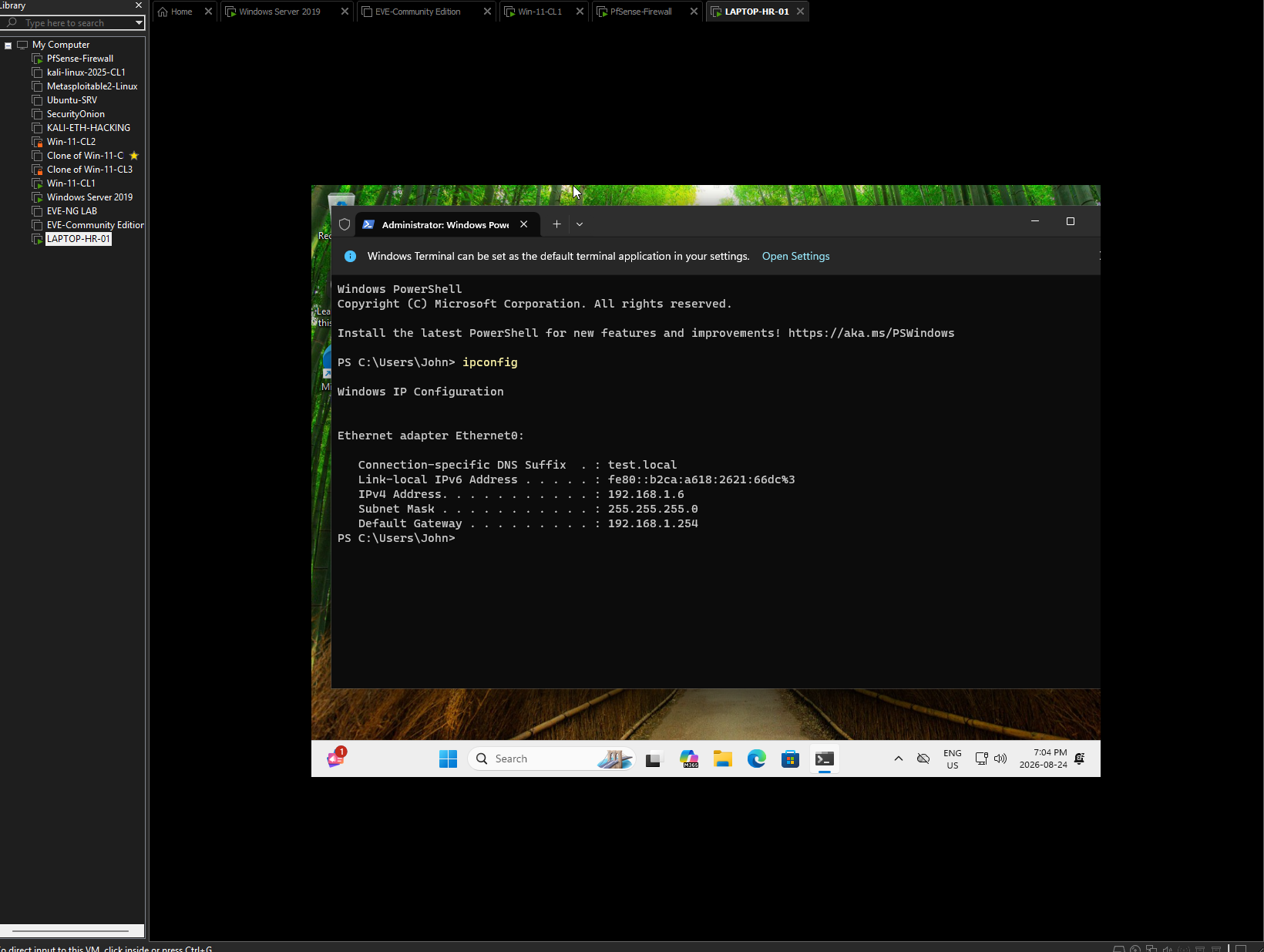
Figure 9 — HR workstation network configuration.
The Windows IP configuration displays the test.local DNS suffix and the workstation’s lab network addressing. Correct DNS and network connectivity are essential for locating the domain controller and AD services.
7.2 Domain Sign-In Validation
At the Windows sign-in screen I selected Other user and authenticated against the TEST domain using Harry’s domain credentials. The “Sign in to: TEST” indicator is direct evidence that Windows was attempting domain authentication rather than using only a local workstation account.
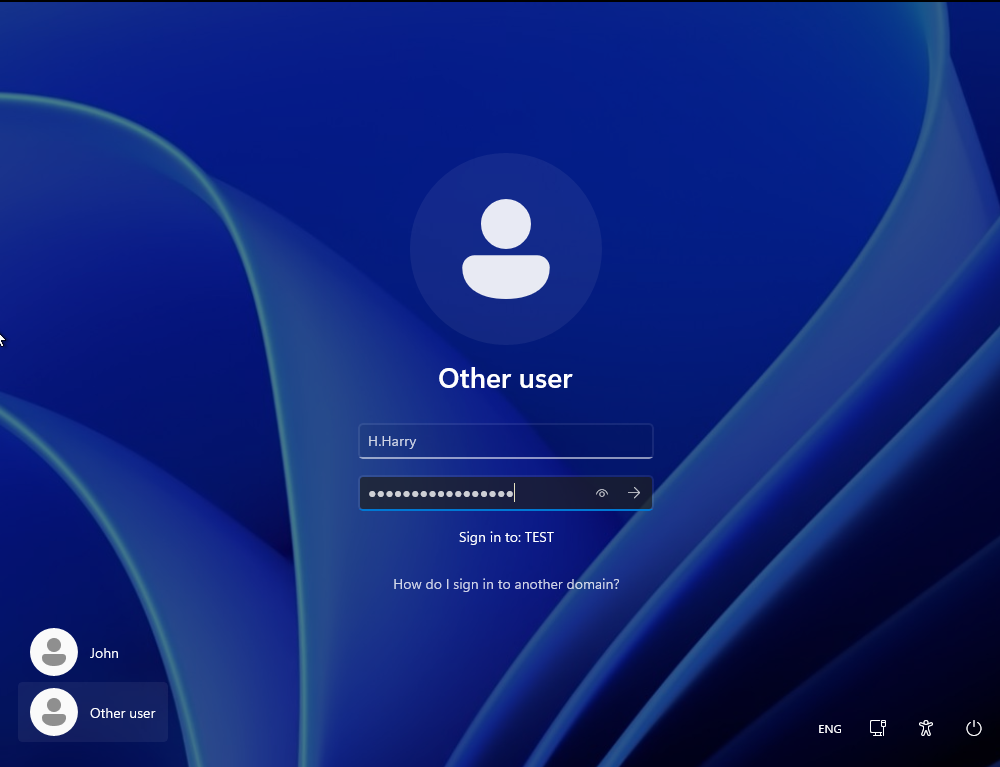
Figure 10 — Domain authentication test.
The Windows 11 logon screen shows the H.Harry username and “Sign in to: TEST.” This validates that the HR workstation recognizes the Active Directory domain as an authentication source.
Phase 5 — Microsoft 365 End-User Integration
8.1 Registering the Organizational Account
After domain authentication was working, I connected Harry’s synchronized Microsoft 365 identity to the Windows workstation. The organizational account H.Harry@johnbrown.pro was registered with the device, linking the endpoint to the user’s cloud identity and allowing Microsoft applications to use the organizational account.
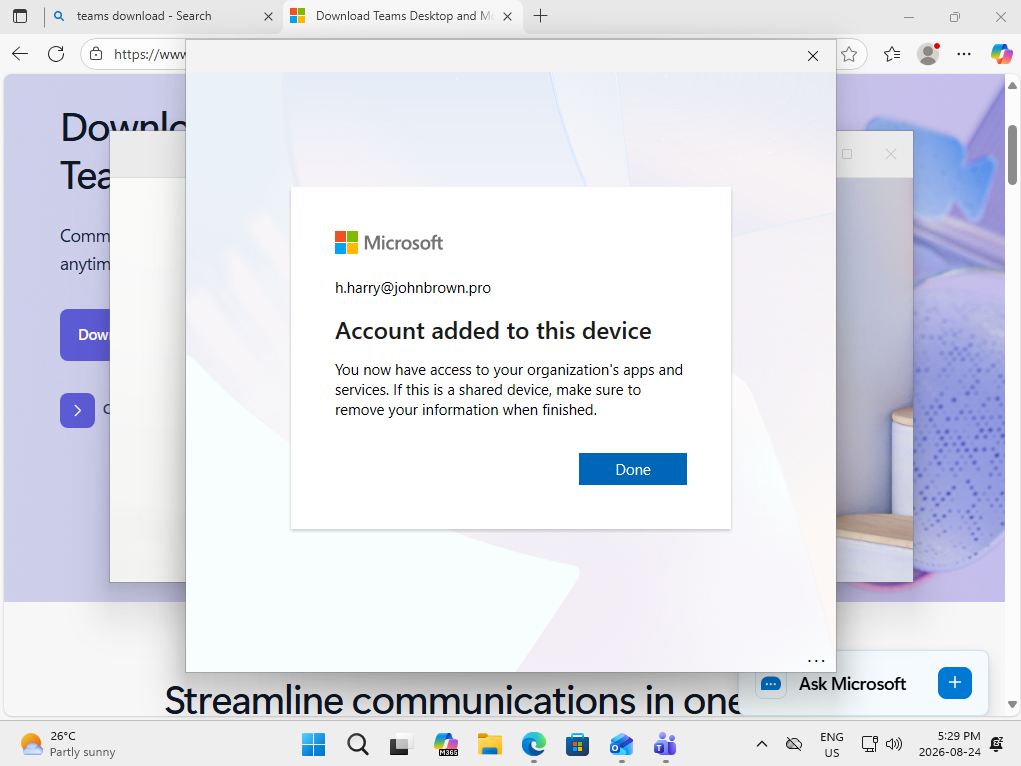
Figure 12 — Organizational account registration.
Windows confirms that H.Harry@johnbrown.pro was added to the device and can access the organization’s apps and services. This provides the bridge between the domain-authenticated Windows session and the user’s Microsoft cloud identity.
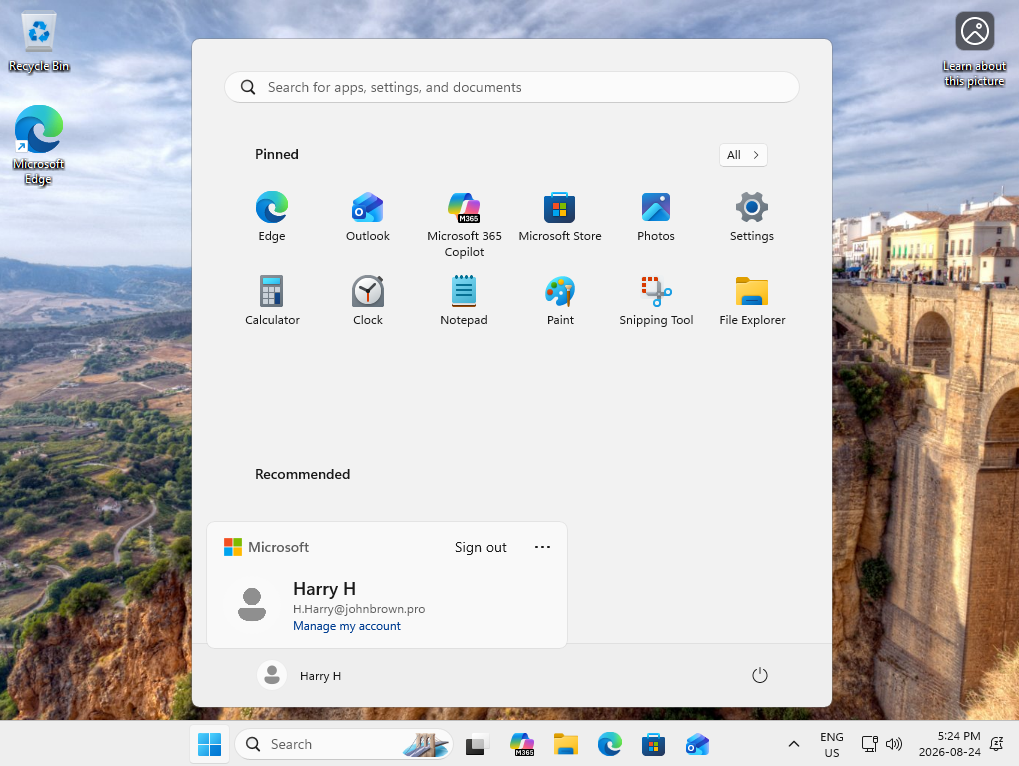
Figure 13 — Identity visible on the workstation.
The Windows Start menu shows Harry H together with the H.Harry@johnbrown.pro organizational identity, confirming that the work account is connected on the endpoint.
8.2 Microsoft Teams Validation
Microsoft Teams was installed and opened under Harry’s organizational identity. The Bench Lab team and General channel were visible, confirming that the licensed user could authenticate to Teams and access the organization’s collaboration workspace.
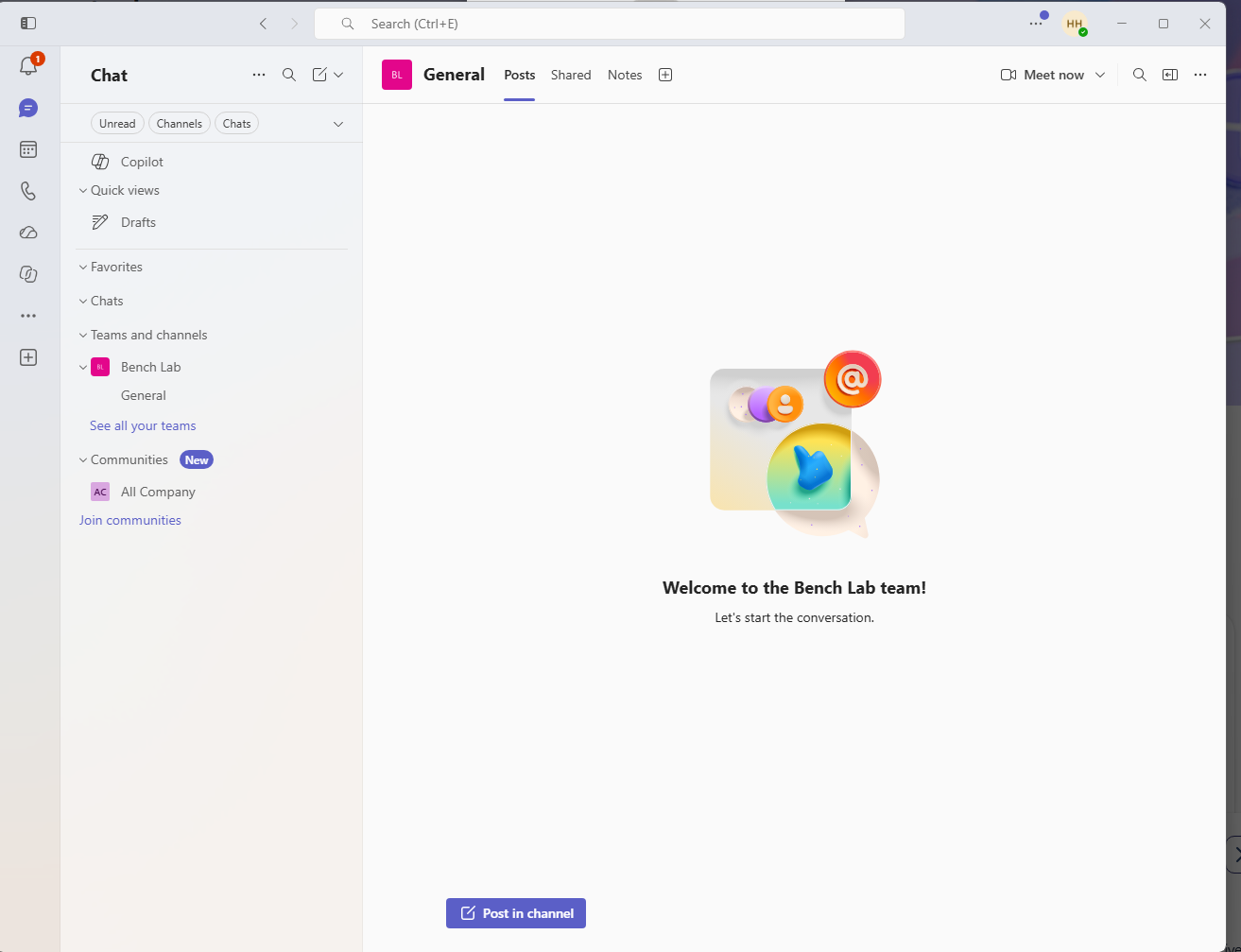
Figure 14 — Microsoft Teams access.
Teams is running on the HR workstation with the Bench Lab team and General channel available. This demonstrates successful cloud authentication and access to a licensed Microsoft 365 collaboration service.
8.3 Outlook / Exchange Online Validation
Outlook was also configured with Harry’s johnbrown.pro account. The mailbox folder structure loaded successfully, including Inbox, Drafts, Sent Items, Deleted Items and Junk Email. This demonstrates successful access to the user’s Microsoft 365 email environment from the domain workstation.
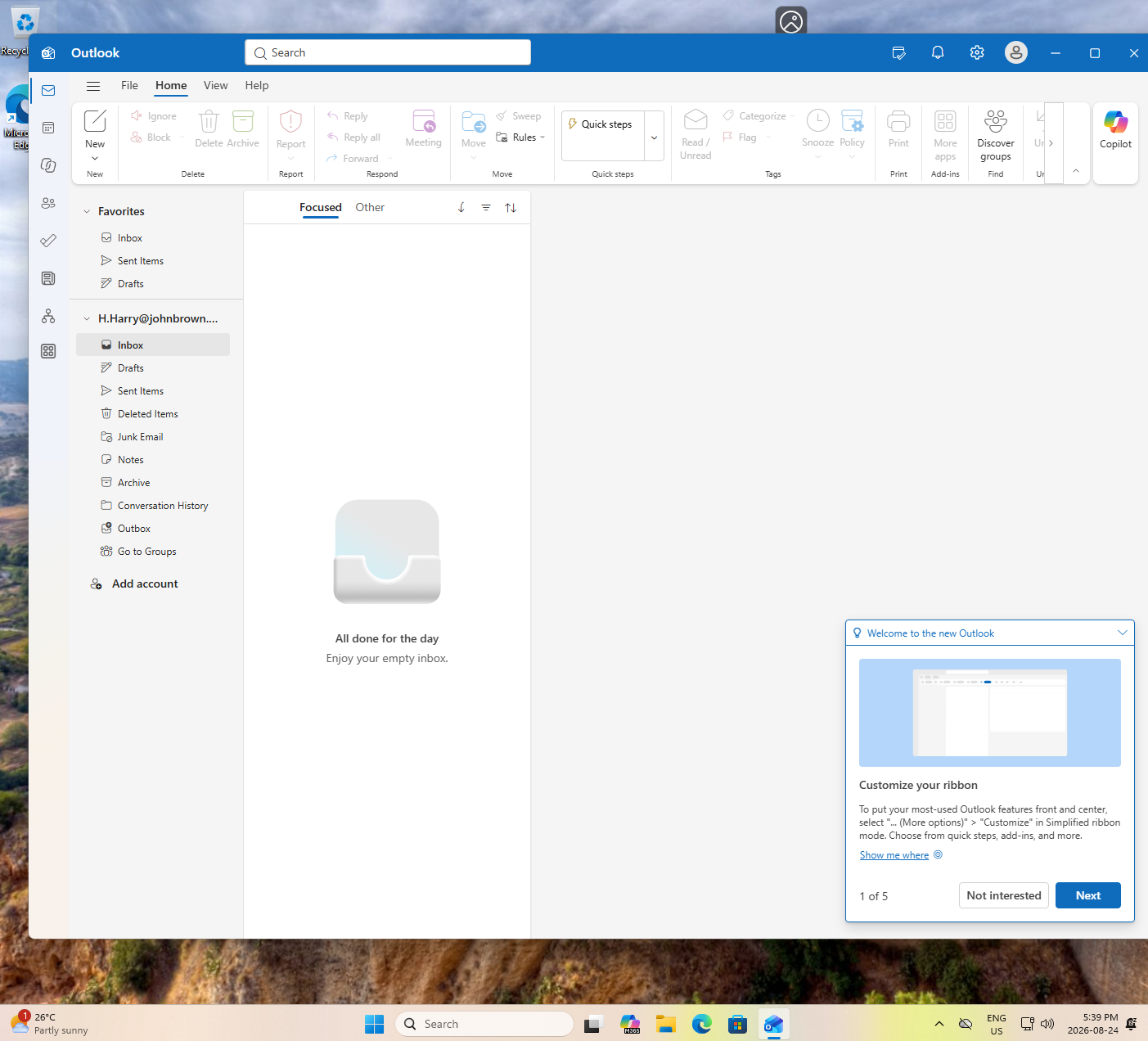
Figure 15 — Outlook mailbox access.
Outlook is configured for H.Harry@johnbrown.pro, and the mailbox folder structure is available. This validates Microsoft 365 email access from the HR workstation.
End-to-End Validation
The completed workflow demonstrated a full hybrid identity path:
Windows Server AD DS → Microsoft Entra Connect Sync → Microsoft Entra ID → Microsoft 365 Licensing → Windows 11 Domain Workstation → Teams and Outlook
An identity created and managed in Windows Server Active Directory was synchronized to Microsoft Entra ID, exposed to Microsoft 365, licensed for cloud services, and then used from a domain-connected Windows 11 workstation. The user could authenticate to the on-premises domain and consume Microsoft 365 services with the synchronized organizational identity.
Validation Point — Result
Active Directory OU structure — ✅ Validated
Departmental users and security groups — ✅ Validated
Microsoft 365 tenant — ✅ Validated
Microsoft Entra Connect Sync — ✅ Validated
On-premises users synchronized to Entra ID — ✅ Validated
On-premises groups synchronized to Entra ID — ✅ Validated
johnbrown.pro cloud sign-in suffix — ✅ Validated
Microsoft 365 Business Standard licensing — ✅ Validated
Windows 11 domain authentication — ✅ Validated
Organizational account registration — ✅ Validated
Microsoft Teams access — ✅ Validated
Outlook / mailbox access — ✅ Validated
Troubleshooting and Administrative Learning
The lab also required troubleshooting the synchronization layer. During the build, the Active Directory connector showed credential-related start failures before the connector configuration was corrected. After the connector credentials and forest connection were repaired, imports and synchronization operations succeeded and the expected objects appeared in Microsoft Entra ID.
This was an important part of the exercise because hybrid identity deployments depend on both correct directory design and healthy synchronization services. Rather than treating synchronization as a one-time wizard, I used the Synchronization Service Manager and the Microsoft Entra admin center to validate the result from both sides: connector operations on the server and object presence/status in the cloud.
11. Technologies Used
VMware Workstation • Windows Server 2019 • Active Directory Domain Services • Active Directory Users and Computers • Windows 11 • Microsoft Entra ID • Microsoft Entra Connect Sync • Microsoft 365 Admin Center • Microsoft 365 Business Standard • Microsoft Teams • Microsoft Outlook • PowerShell • Windows command-line tools
Key Takeaways
This project moved beyond a standalone Active Directory lab by connecting traditional Windows domain administration to a modern Microsoft cloud environment. I gained practical experience with the relationship between AD DS identities, UPNs, Entra synchronization, Microsoft 365 licensing and the end-user sign-in experience.
The most important technical lesson was that successful hybrid identity is not proven merely by completing the Entra Connect wizard. It must be validated at several layers: the on-premises directory object, synchronization health, the cloud identity, group membership, licensing, workstation authentication and application access.
The lab also reinforced why organizations still need strong Active Directory fundamentals even when they use Microsoft 365. The local directory remains the authoritative source for synchronized identities, while Microsoft Entra ID extends those identities to cloud applications and services.
Lab Summary
Project: Hybrid Active Directory, Microsoft Entra ID & Microsoft 365 Deployment
Role: System Administrator
Outcome: Built and validated a hybrid identity environment integrating Windows Server Active Directory with Microsoft Entra ID and Microsoft 365, synchronized departmental users and groups, assigned cloud licenses, deployed an HR Windows 11 workstation, and verified domain authentication plus Teams and Outlook access.
0 Comment