HOME - Windows Server Active Directory Group Policy Administration and Security Hardening
 Windows Server Active Directory Group Policy Administration and Security Hardening
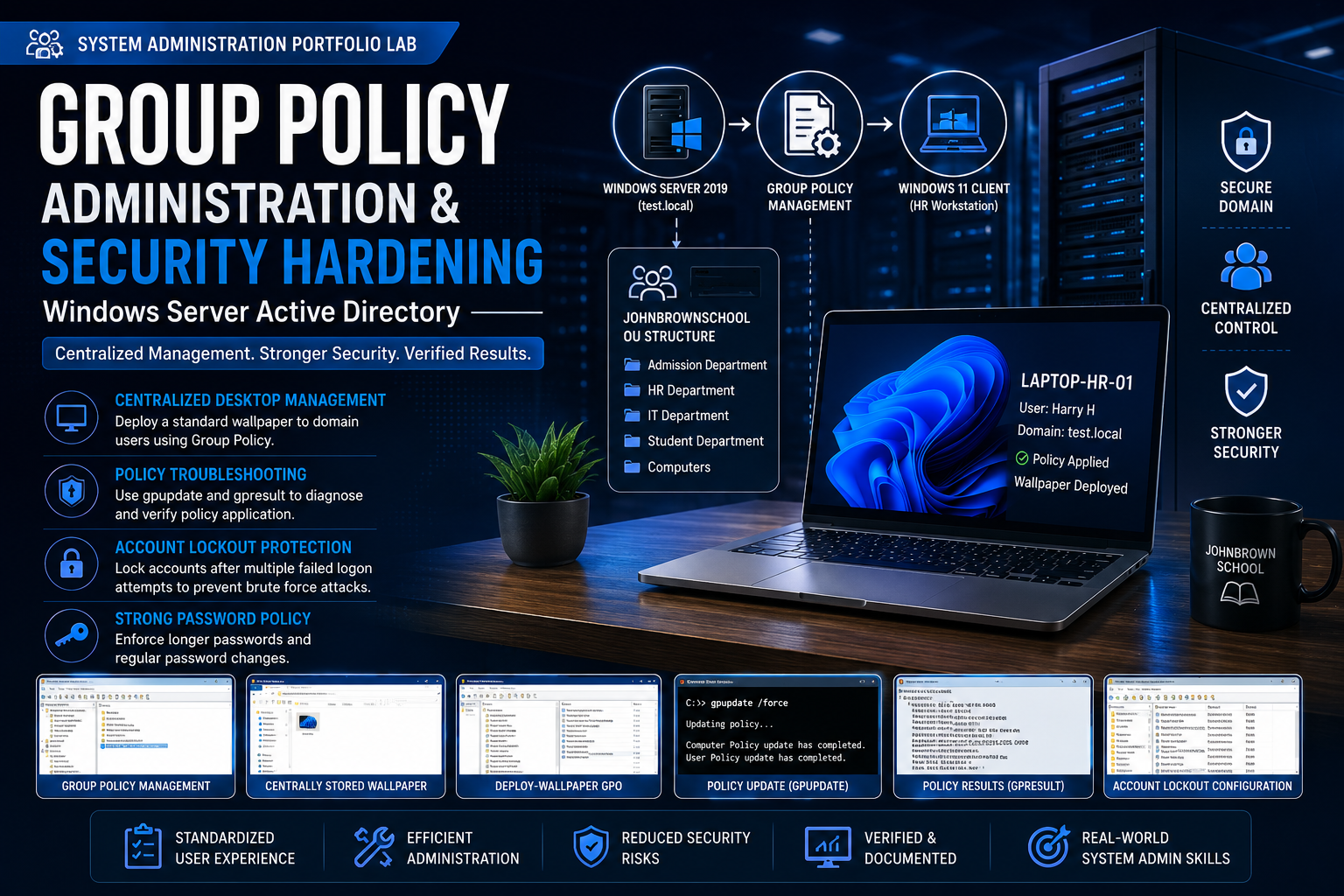
Project: System Administration Portfolio Lab
Role: System Administrator
Environment: VMware Workstation • Windows Server 2019 • Windows 11
Domain: test.local
Organizational Structure: JohnBrownSchool
Test User: Harry H
Test Workstation: LAPTOP-HR-01
Status: Group Policy deployment, troubleshooting and security controls validated
Project Overview
This lab extends the JohnBrownSchool Active Directory environment by introducing centralized Windows administration through Group Policy. The objective was to use Windows Server 2019 and Group Policy Management to deploy a standardized desktop configuration to a domain user, troubleshoot Group Policy processing from a Windows 11 workstation, and implement domain security controls for account lockout and password policy.
The environment uses the test.local Active Directory domain. The JohnBrownSchool OU contains departmental OUs including Admission Department, HR Department, IT Department, Student Department and Computers. Harry H was used as the HR test user, and LAPTOP-HR-01 was used as the Windows 11 endpoint for policy validation.
The lab was completed in three practical areas. First, I configured a centrally stored wallpaper and deployed it through a Group Policy Object named deploy-wallpaper. Second, I diagnosed why the policy was initially not being applied, linked the GPO to the correct OU, forced Group Policy processing and verified the result with gpresult. Finally, I configured and tested account lockout controls and strengthened the Default Domain Policy password requirements.
This project demonstrates practical experience with Group Policy Management, Active Directory administration, centralized endpoint configuration, policy troubleshooting and Windows domain security hardening.
Project Objectives
– Use Group Policy to centrally manage a Windows 11 domain workstation.
– Create a shared location on Windows Server for a centrally managed desktop wallpaper.
– Configure appropriate share and NTFS permissions so domain users can read the wallpaper file.
– Create and configure the deploy-wallpaper Group Policy Object.
– Link the GPO to the JohnBrownSchool OU so the policy reaches the HR user.
– Use gpupdate /force to trigger immediate Group Policy processing.
– Use gpresult /r to verify Resultant Set of Policy information and confirm policy application.
– Configure an account lockout threshold to reduce repeated password-guessing attempts.
– Validate account lockout from both the Windows 11 workstation and Active Directory Users and Computers.
– Strengthen the domain password policy by increasing minimum password length and maximum password age settings.
Lab Architecture
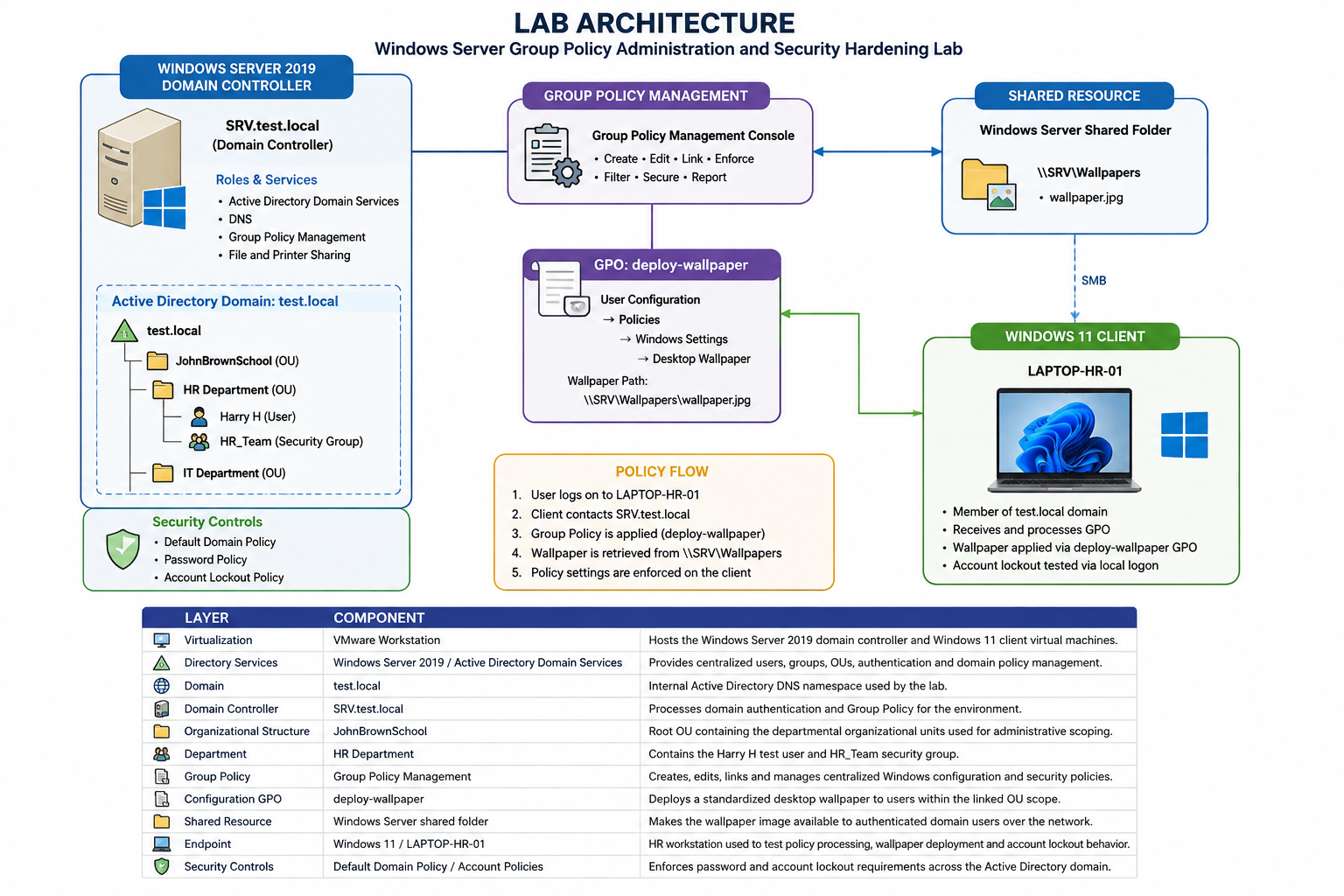
Layer — Component — Purpose
Virtualization — VMware Workstation — Hosts the Windows Server 2019 domain controller and Windows 11 client virtual machines.
Directory Services — Windows Server 2019 / Active Directory Domain Services — Provides centralized users, groups, OUs, authentication and domain policy management.
Domain — test.local — Internal Active Directory DNS namespace used by the lab.
Domain Controller — SRV.test.local — Processes domain authentication and Group Policy for the environment.
Organizational Structure — JohnBrownSchool — Root OU containing the departmental organizational units used for administrative scoping.
Department — HR Department — Contains the Harry H test user and HR_Team security group.
Group Policy — Group Policy Management — Creates, edits, links and manages centralized Windows configuration and security policies.
Configuration GPO — deploy-wallpaper — Deploys a standardized desktop wallpaper to users within the linked OU scope.
Shared Resource — Windows Server shared folder — Makes the wallpaper image available to authenticated domain users over the network.
Endpoint — Windows 11 / LAPTOP-HR-01 — HR workstation used to test policy processing, wallpaper deployment and account lockout behavior.
Security Controls — Default Domain Policy / Account Policies — Enforces password and account lockout requirements across the Active Directory domain.
Phase 1 — Group Policy Environment
4.1 Group Policy Management and Active Directory Structure
I opened Group Policy Management on the Windows Server 2019 domain controller and reviewed the existing test.local domain structure. The JohnBrownSchool OU already contained the departmental OUs used in the Active Directory lab, including Admission Department, HR Department, IT Department, Student Department and Computers.
The Group Policy Objects container initially contained the Default Domain Controllers Policy, Default Domain Policy and an existing firefox GPO. This provided the starting point for introducing a new GPO dedicated to centralized wallpaper deployment.
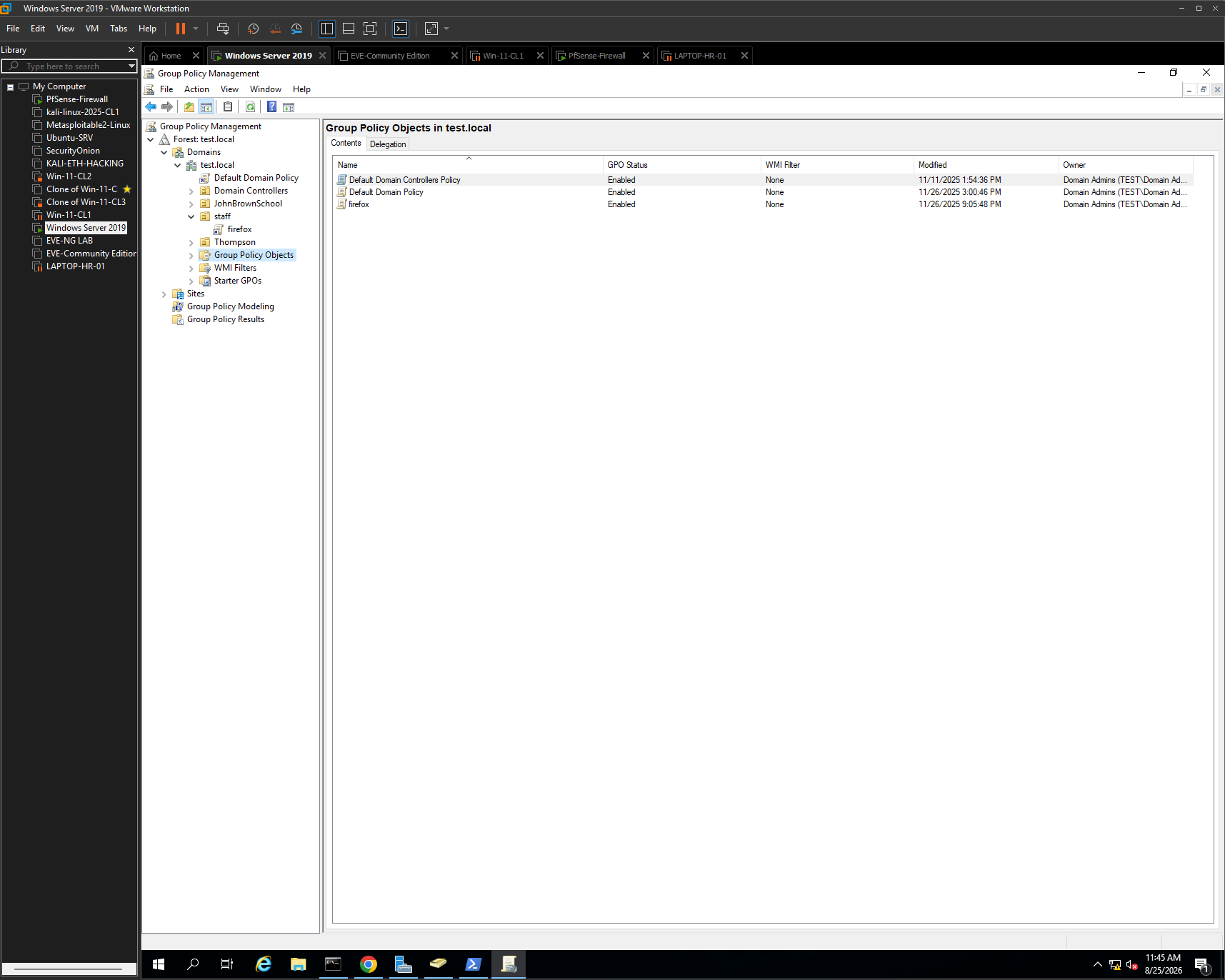
Figure 1 — Group Policy Management environment.
Group Policy Management shows the test.local domain, the JohnBrownSchool organizational structure and the existing Group Policy Objects. This establishes the Active Directory and GPO environment used for the project.
4.2 Creating the Wallpaper Deployment GPO
I created a Group Policy Object named deploy-wallpaper and edited its User Configuration settings. Because desktop wallpaper is a user-specific configuration, the policy was configured under:
User Configuration → Policies → Administrative Templates → Desktop → Desktop → Desktop Wallpaper
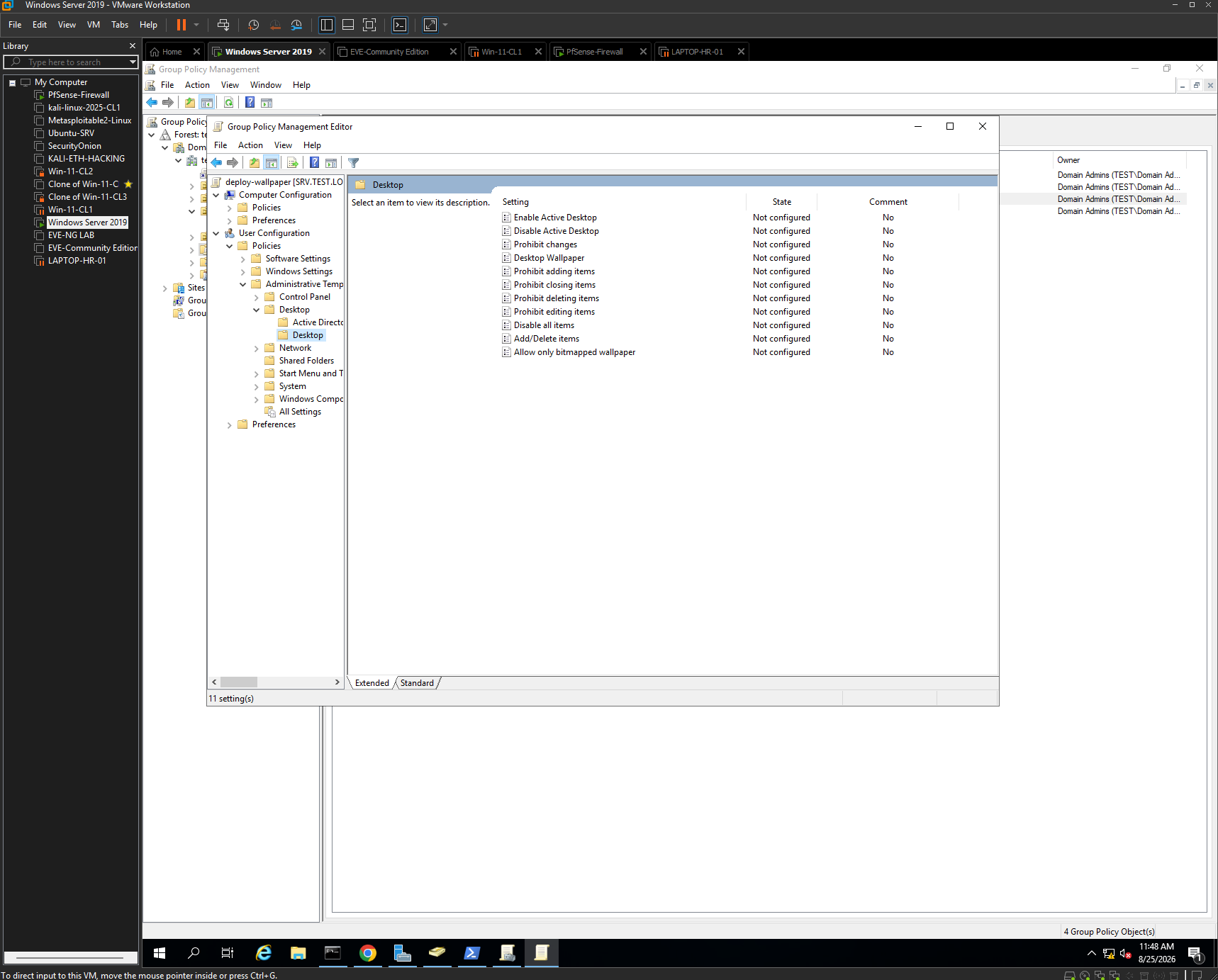
Figure 2 — Desktop Wallpaper policy location.
The Group Policy Management Editor shows the Desktop policy settings available under User Configuration. This is the policy location used to centrally define the wallpaper presented to domain users.
Phase 2 — Centralized Wallpaper Resource and Permissions
5.1 Preparing the Shared Resource
The wallpaper file needed to be accessible from the Windows 11 workstation when Group Policy processed the user configuration. I therefore prepared a shared folder on the Windows Server and configured access for Domain Users.
Rather than depending on a file stored locally on each endpoint, using a server-hosted resource provides a centralized location that domain users can access when the policy is applied.
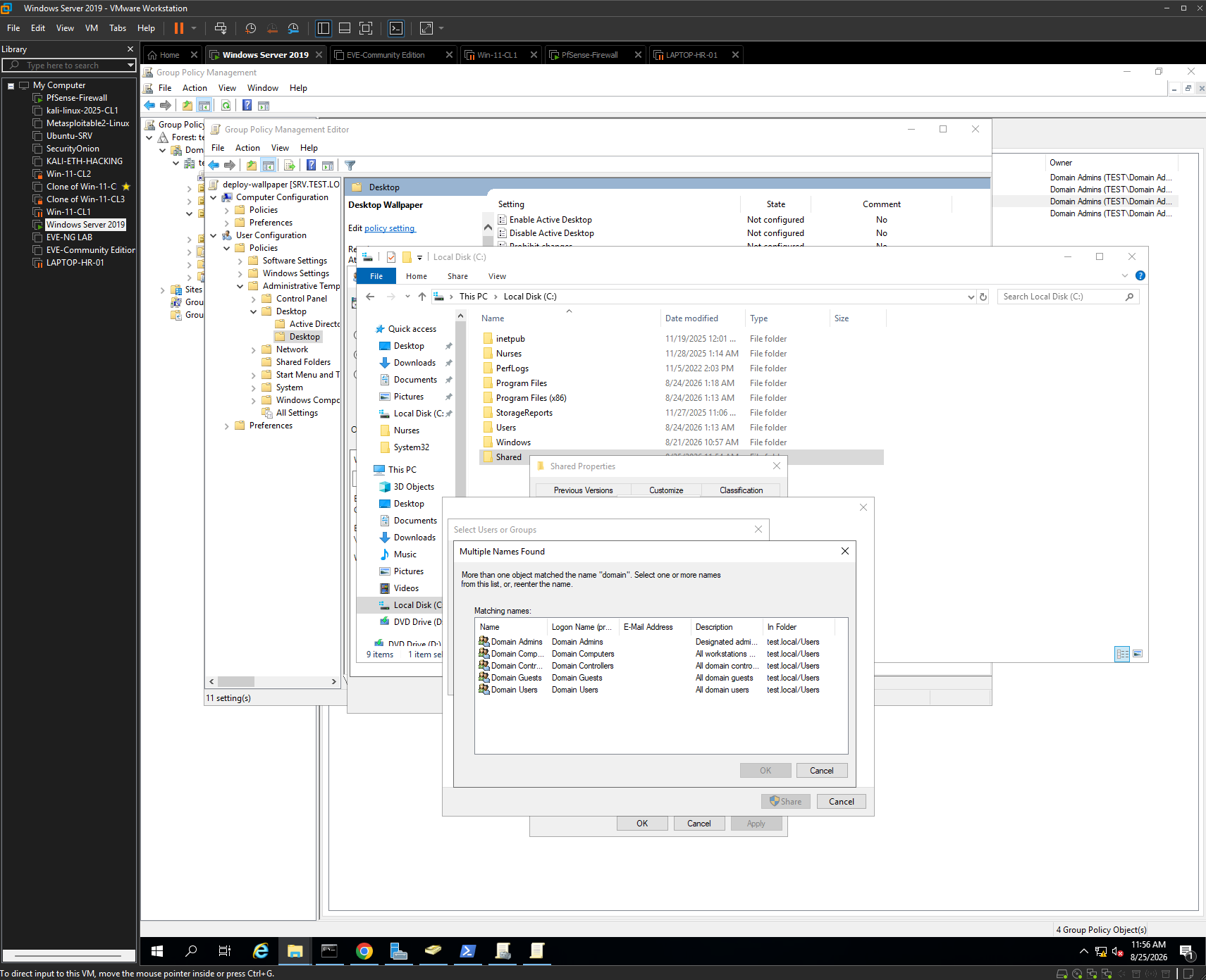
Figure 3 — Selecting Domain Users for the shared resource.
The sharing configuration shows the domain security principals available for the shared folder. Domain Users was selected so authenticated domain users could access the wallpaper resource.
5.2 Configuring Share Permissions
Domain Users was granted Read access to the shared folder. Read access is sufficient because users only need to retrieve the image; they do not need permission to modify or replace the centrally managed file.
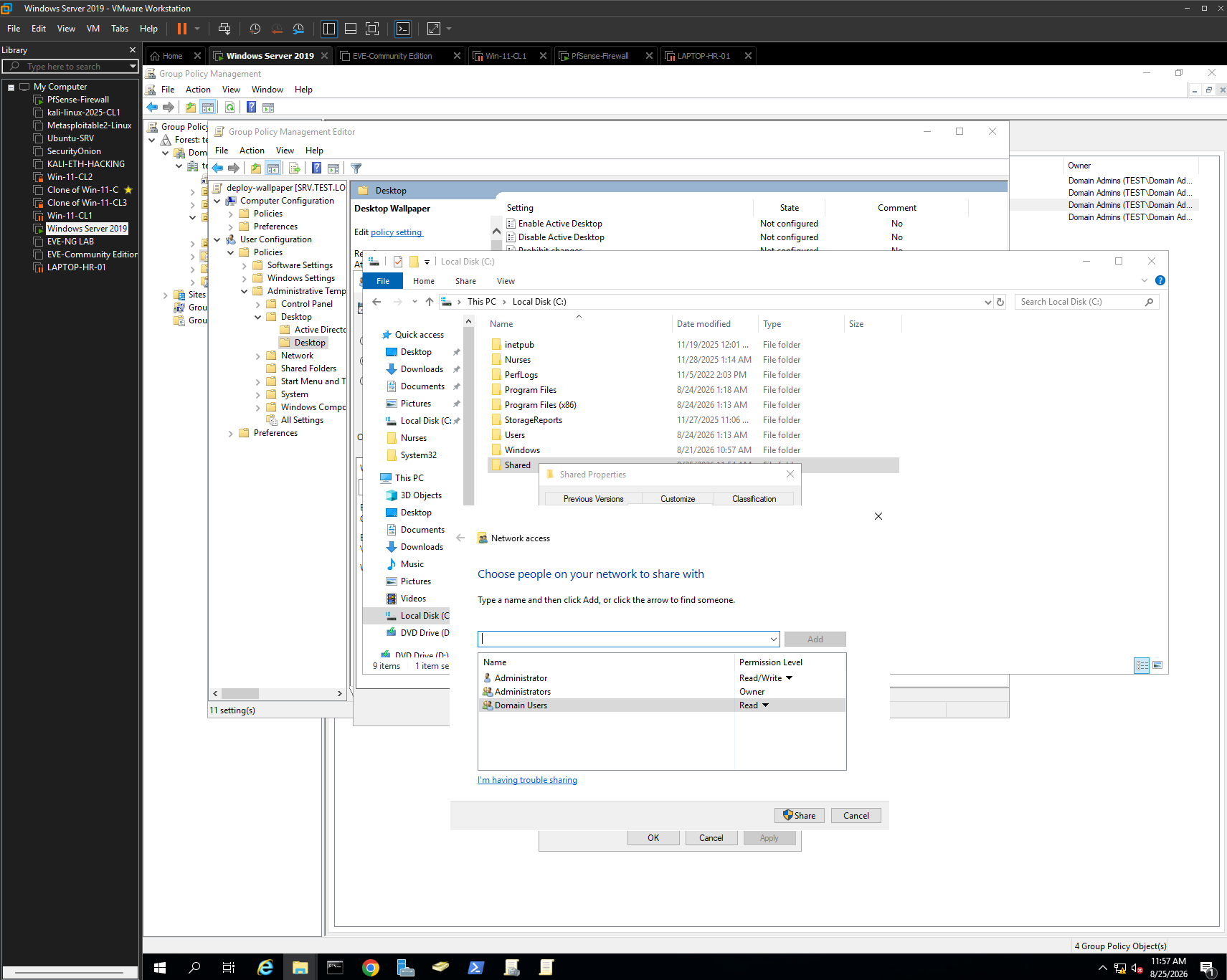
Figure 4 — Domain Users granted read access.
The Network Access dialog shows Domain Users with Read permission. This allows domain users to retrieve the wallpaper while limiting unnecessary write access.
5.3 Validating NTFS Permissions
I also verified the folder’s NTFS security permissions. Domain Users had Read & execute, List folder contents and Read permissions.
Both the share permissions and NTFS permissions must allow access. Configuring only one layer can still prevent the workstation from retrieving the file.
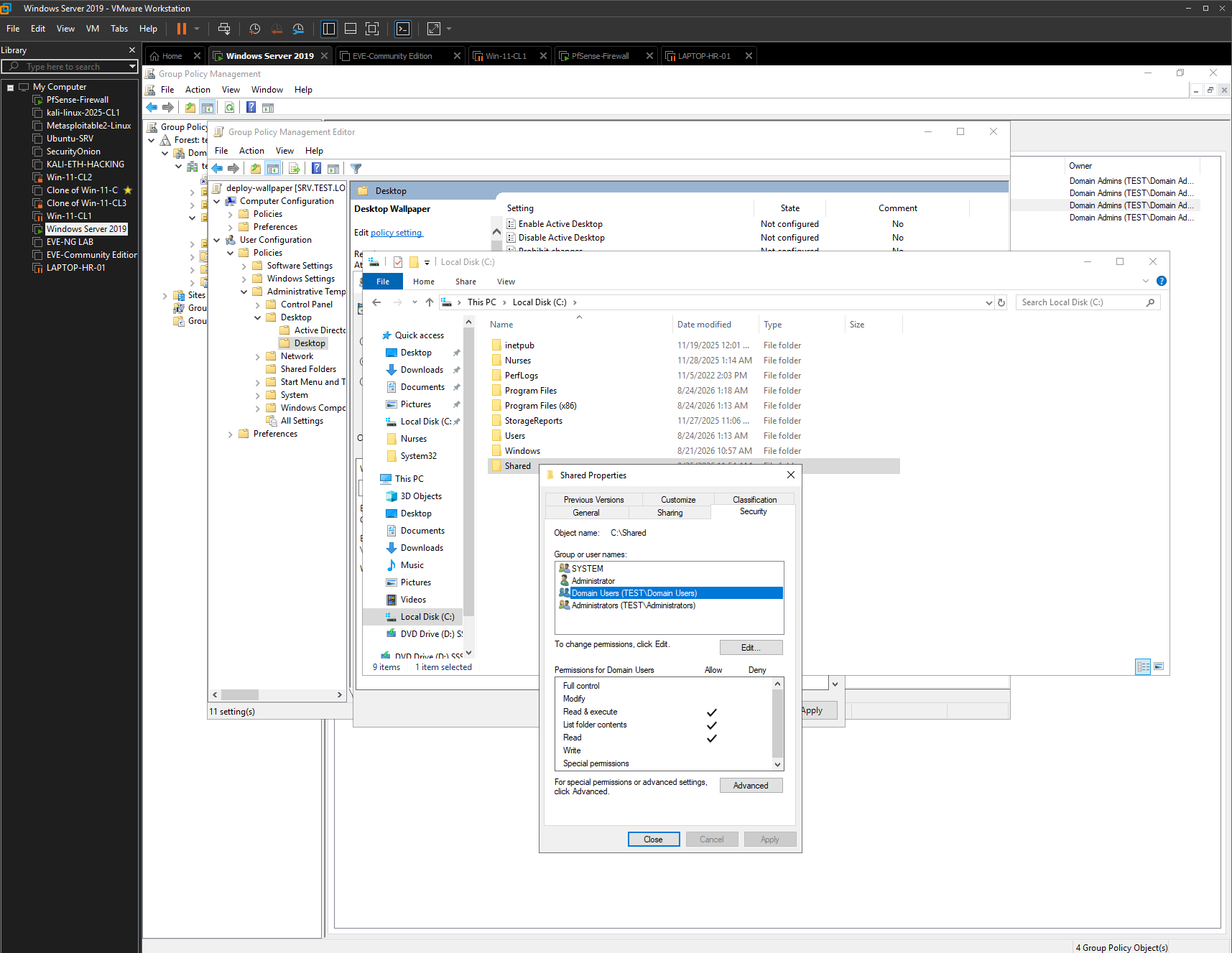
Figure 5 — NTFS permissions for Domain Users.
The Security tab confirms that Domain Users can read and execute, list folder contents and read the shared resource. This provides the filesystem permissions required for the wallpaper deployment.
Phase 3 — Desktop Wallpaper GPO Deployment
6.1 Enabling the Desktop Wallpaper Policy
The Desktop Wallpaper setting in deploy-wallpaper was enabled and configured to reference the centrally available wallpaper image.
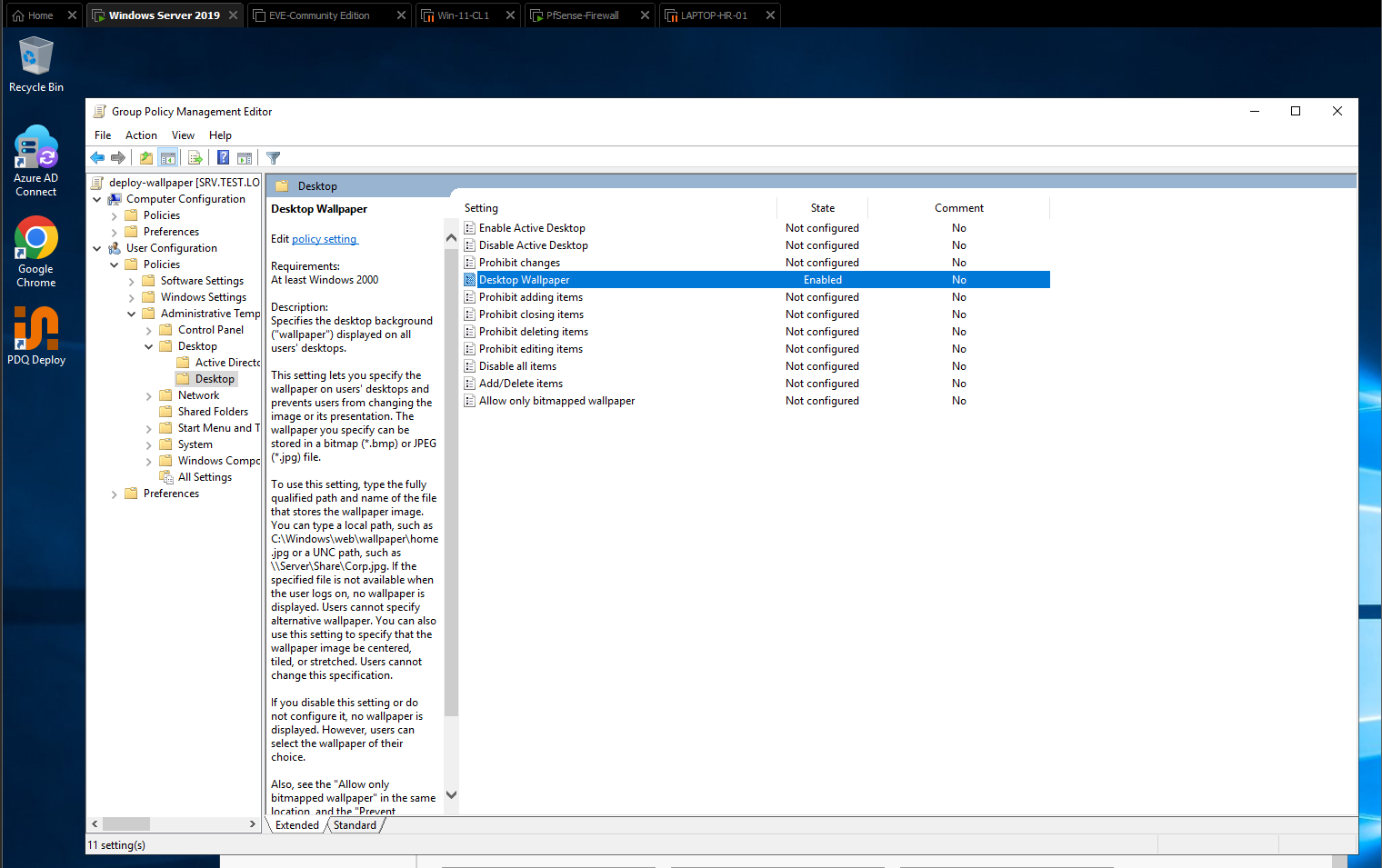
Figure 6 — Desktop Wallpaper policy enabled.
The Group Policy Management Editor shows Desktop Wallpaper in the Enabled state. This confirms that the deploy-wallpaper GPO contains an active user configuration for desktop background management.
6.2 Identifying the GPO Scope Problem
After configuring the policy, I reviewed the JohnBrownSchool OU and found that no Group Policy Object was linked to it. Creating and configuring a GPO does not automatically make it apply to users or computers. The GPO must be linked to a site, domain or OU that contains the intended objects.
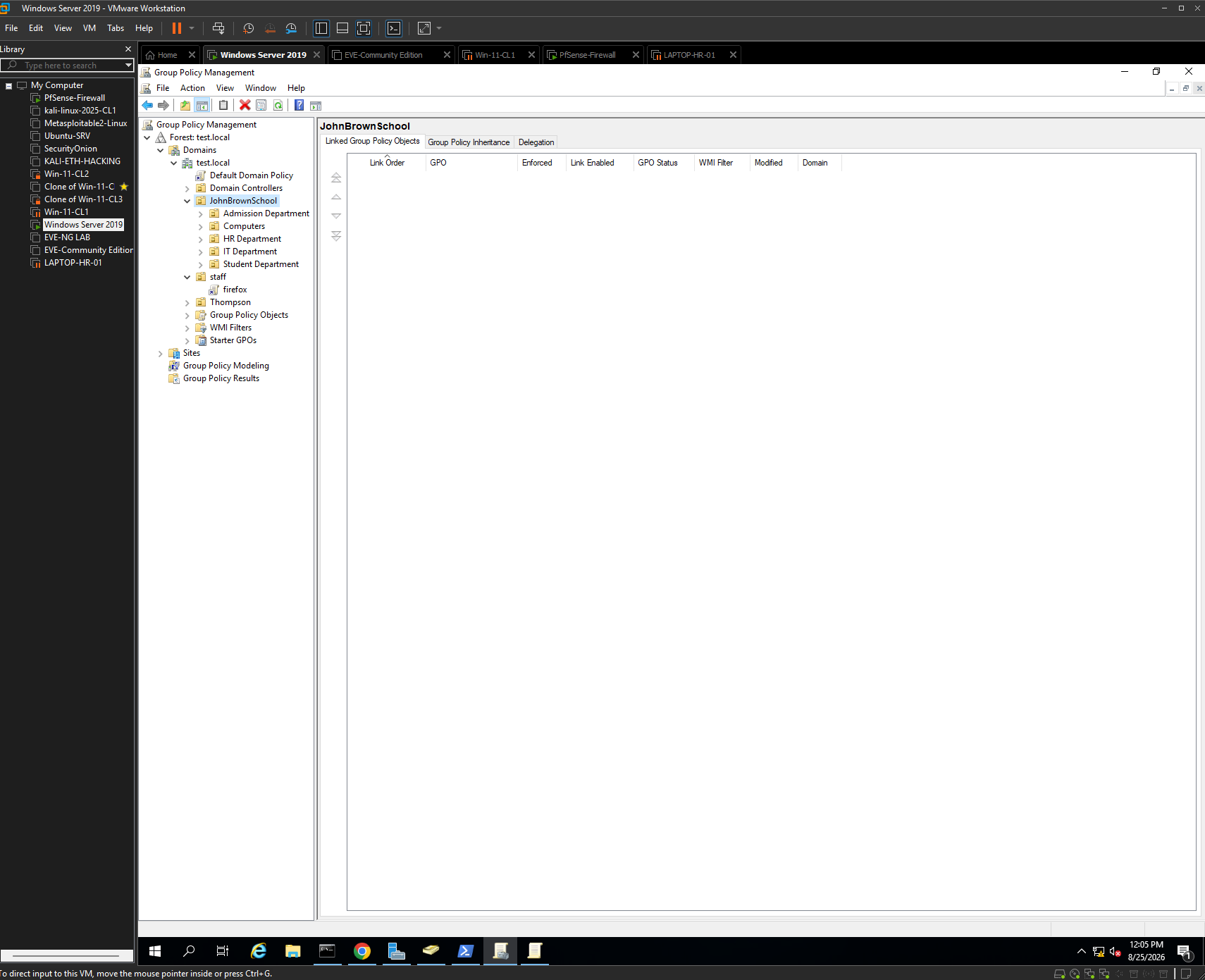
Figure 7 — JohnBrownSchool OU before linking deploy-wallpaper.
The Linked Group Policy Objects tab is empty. This explains why a correctly configured GPO could still fail to reach Harry H.
6.3 Linking deploy-wallpaper to JohnBrownSchool
I linked deploy-wallpaper to the JohnBrownSchool OU. Because Harry H resides inside HR Department, which is a child OU of JohnBrownSchool, the user configuration could be inherited through the OU hierarchy unless inheritance was blocked or another filtering condition prevented it.
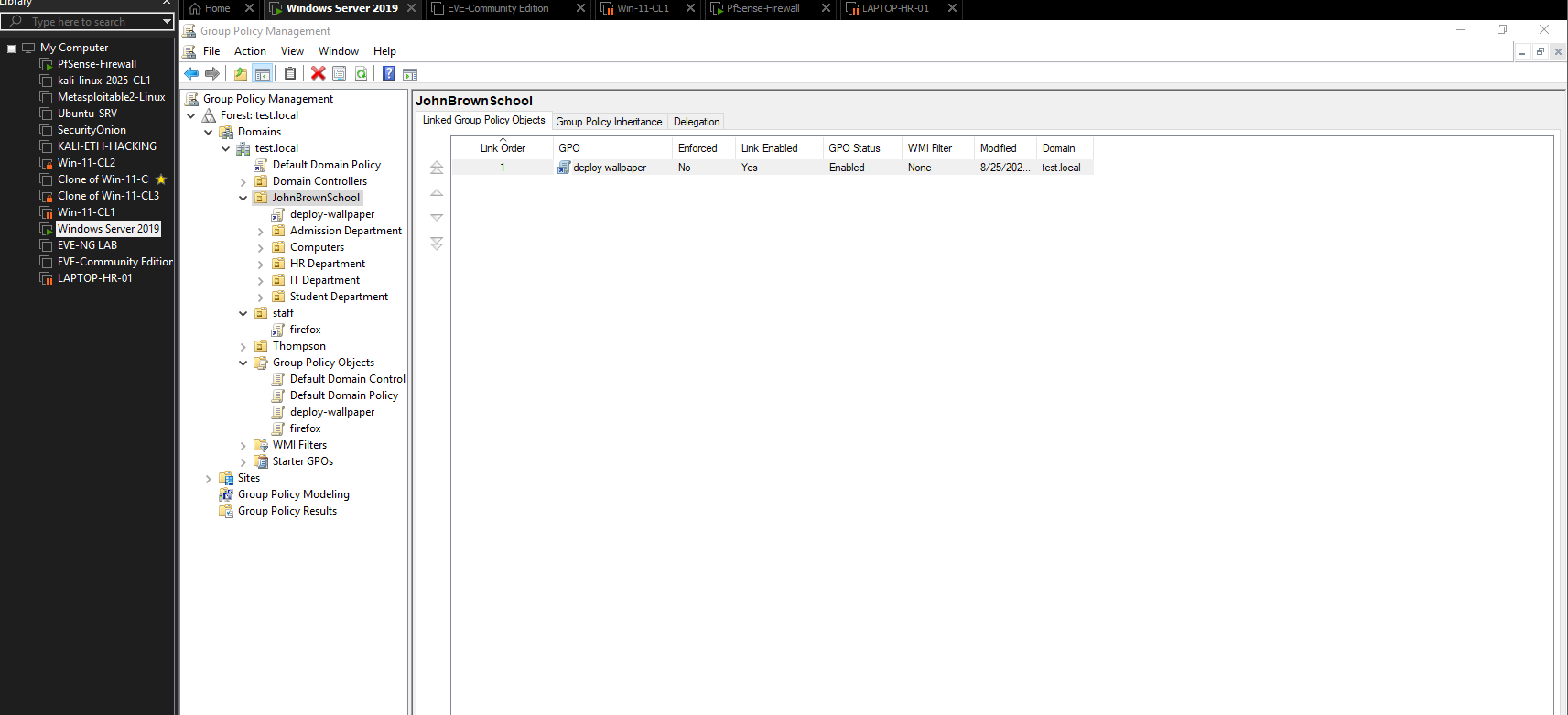
Figure 8 — deploy-wallpaper linked to JohnBrownSchool.
The Linked Group Policy Objects tab now shows deploy-wallpaper with Link Enabled set to Yes. This establishes the scope required for the policy to reach objects within the JohnBrownSchool OU hierarchy.
Phase 4 — Group Policy Troubleshooting and Validation
7.1 Initial Workstation State
Before the new wallpaper policy was successfully applied, LAPTOP-HR-01 still displayed its previous Windows desktop background.
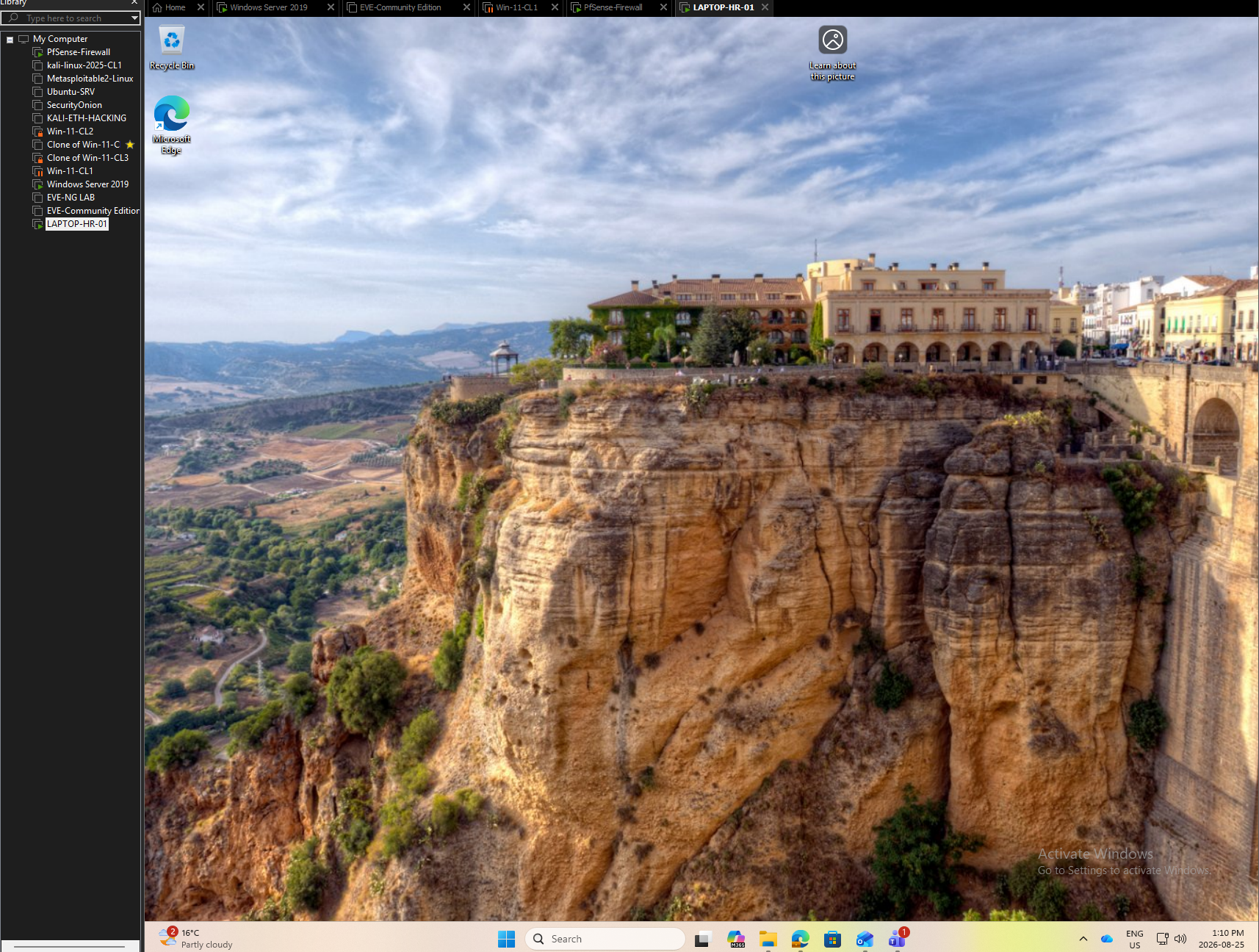
Figure 9 — HR workstation before successful wallpaper deployment.
The Windows 11 desktop shows the workstation’s previous background. This provides a baseline before validating the new GPO.
7.2 Checking Resultant Group Policy
On LAPTOP-HR-01, I ran:
gpresult /r
The first result showed N/A under Applied Group Policy Objects for Harry H. This confirmed that the expected deploy-wallpaper GPO had not been applied to the user.
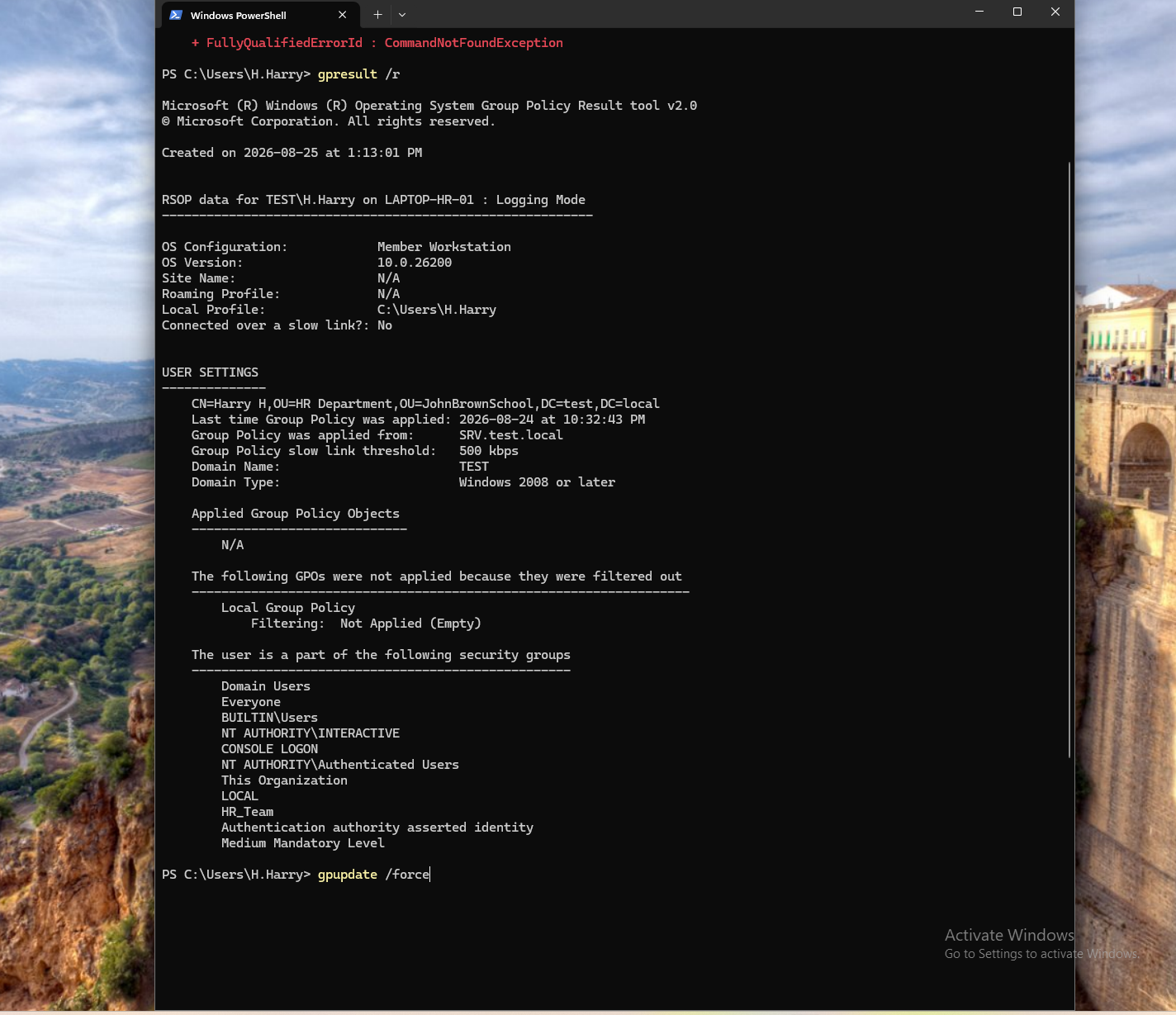
Figure 10 — gpresult before deploy-wallpaper was applied.
The Resultant Set of Policy output identifies Harry H in the HR Department OU but shows no applied domain GPO under the user settings. This was direct evidence that the problem was policy application rather than simply the desktop failing to refresh.
7.3 Forcing Group Policy Processing
After correcting the GPO link, I ran:
gpupdate /force
The workstation reported that both Computer Policy and User Policy updates completed successfully.
Figure 11 — Forced Group Policy update completed successfully.
The PowerShell output confirms successful processing of both policy sections. Using gpupdate /force allowed the configuration to be tested immediately instead of waiting for the normal background Group Policy refresh cycle.
7.4 Wallpaper Source Image
The centrally managed wallpaper used for the deployment was a landscape image stored in the server-accessible shared location.

Figure 12 — Wallpaper image used for centralized deployment.
This is the image configured as the desktop background through the deploy-wallpaper Group Policy Object.
7.5 Confirming Successful GPO Application
After the policy refresh, I ran gpresult /r again. This time deploy-wallpaper appeared under Applied Group Policy Objects for Harry H.
The Windows 11 desktop also displayed the centrally deployed wallpaper, providing both command-line and visual confirmation that the policy had successfully reached the workstation.
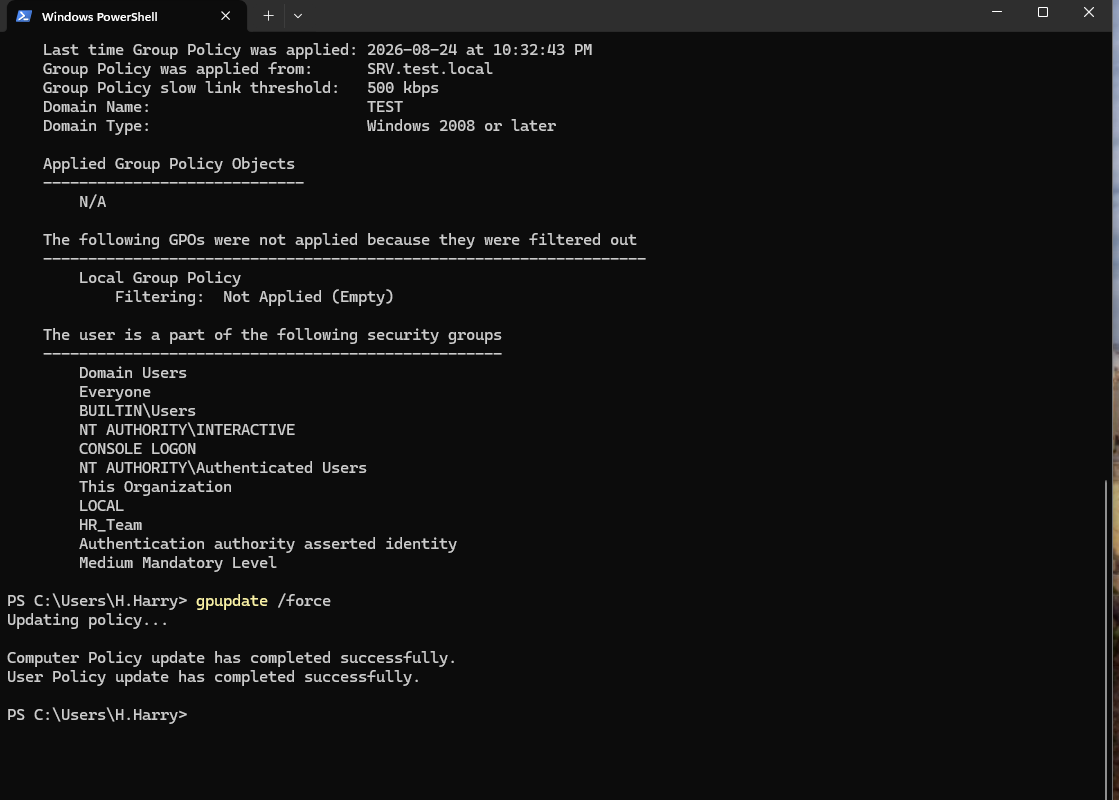
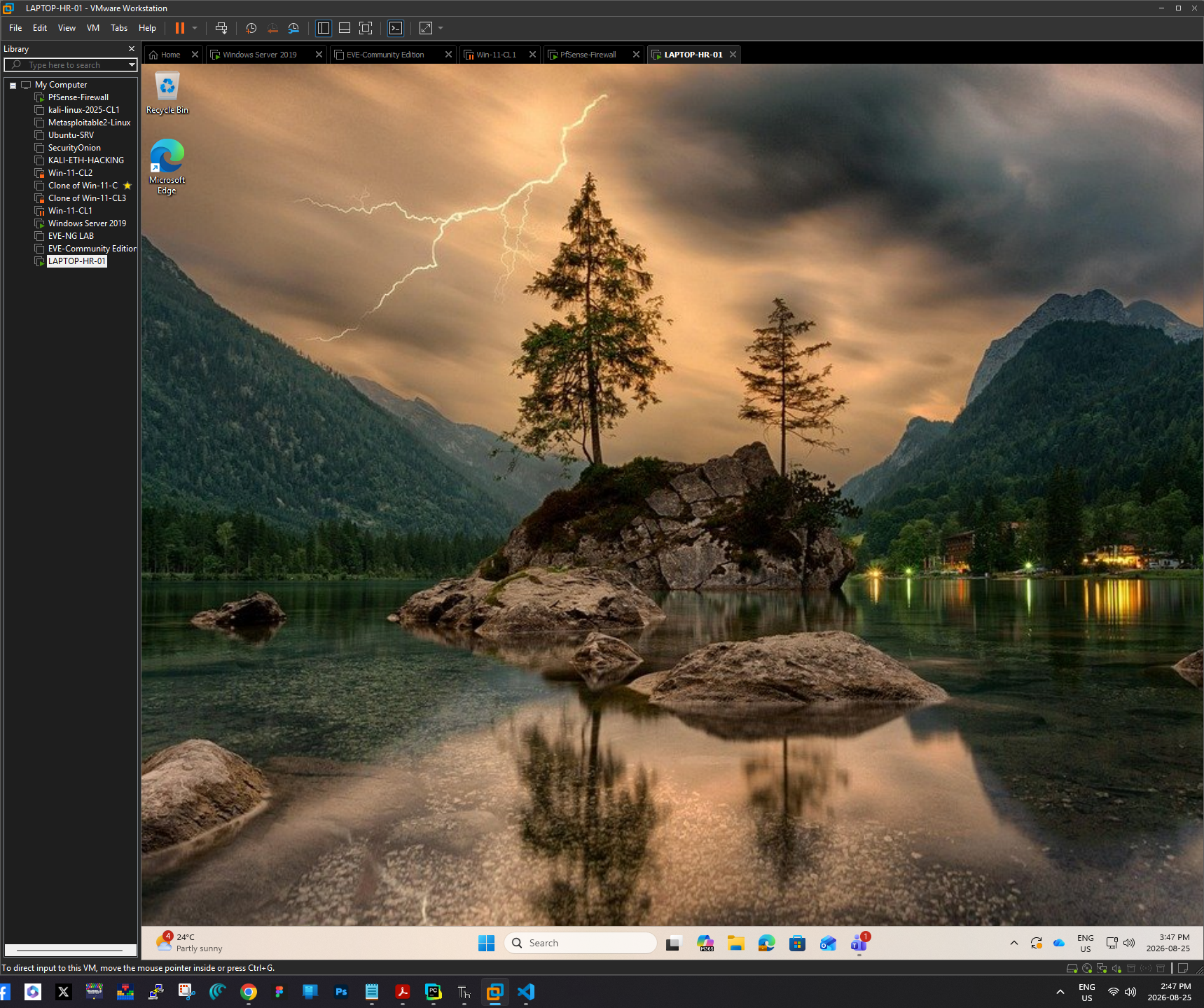
Figure 13 — deploy-wallpaper successfully applied.
The gpresult output shows deploy-wallpaper under Applied Group Policy Objects. The new wallpaper is also visible behind PowerShell. Together, these results confirm successful policy processing for Harry H on LAPTOP-HR-01.
Phase 5 — Account Lockout Policy
8.1 Configuring the Account Lockout Threshold
I then configured an account lockout policy as a domain security control. The Account lockout threshold was set to 5 invalid logon attempts.
The policy is located under:
Computer Configuration → Policies → Windows Settings → Security Settings → Account Policies → Account Lockout Policy
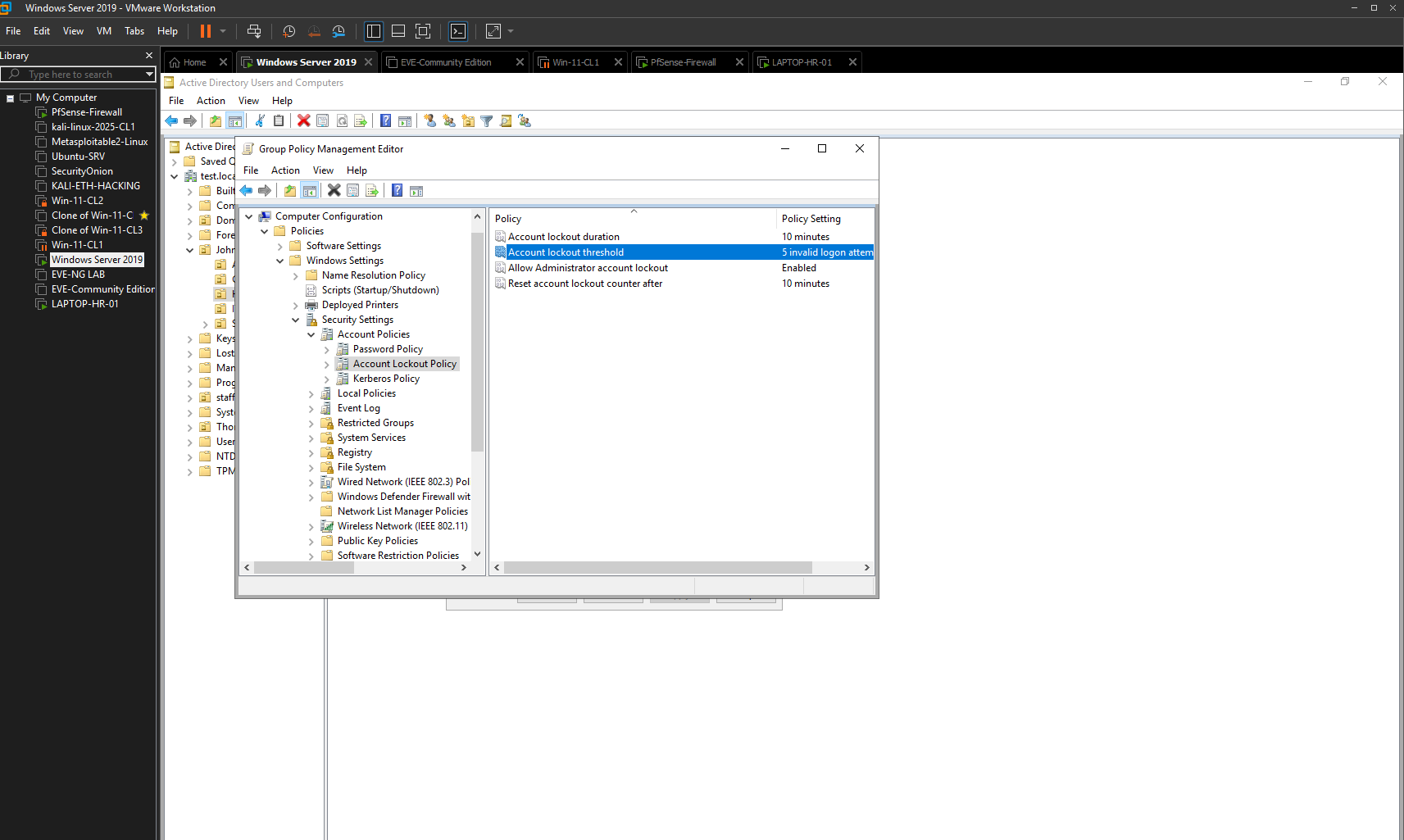
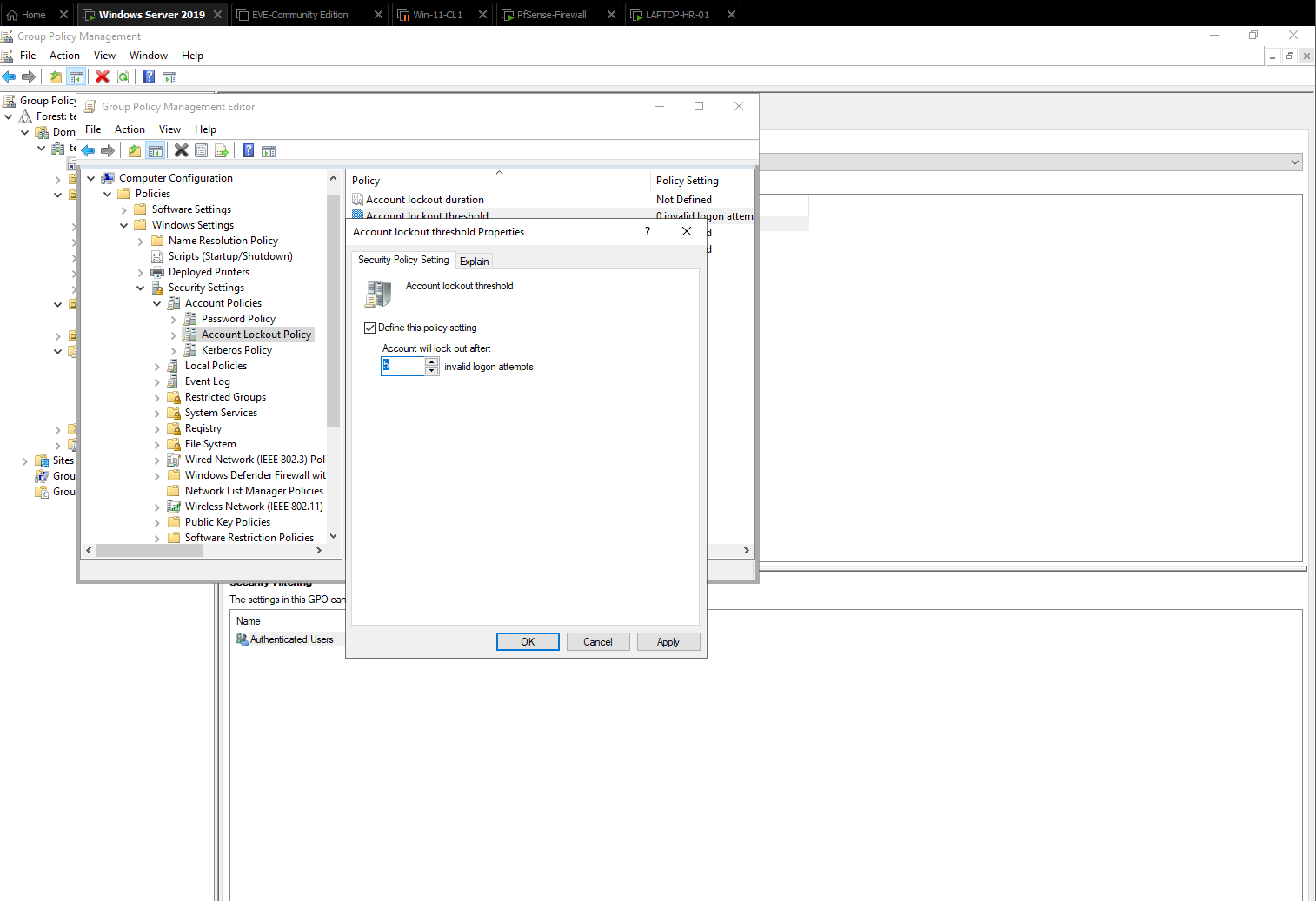
Figure 14 — Account lockout threshold configured.
The policy configuration shows that an account will lock after five invalid logon attempts. This helps reduce the effectiveness of repeated password-guessing attempts against domain accounts.
8.2 Testing the Lockout Control
I tested the security control using Harry H on LAPTOP-HR-01 by generating repeated invalid authentication attempts. After the configured threshold was reached, Windows prevented further sign-in and reported that the referenced account was currently locked out.
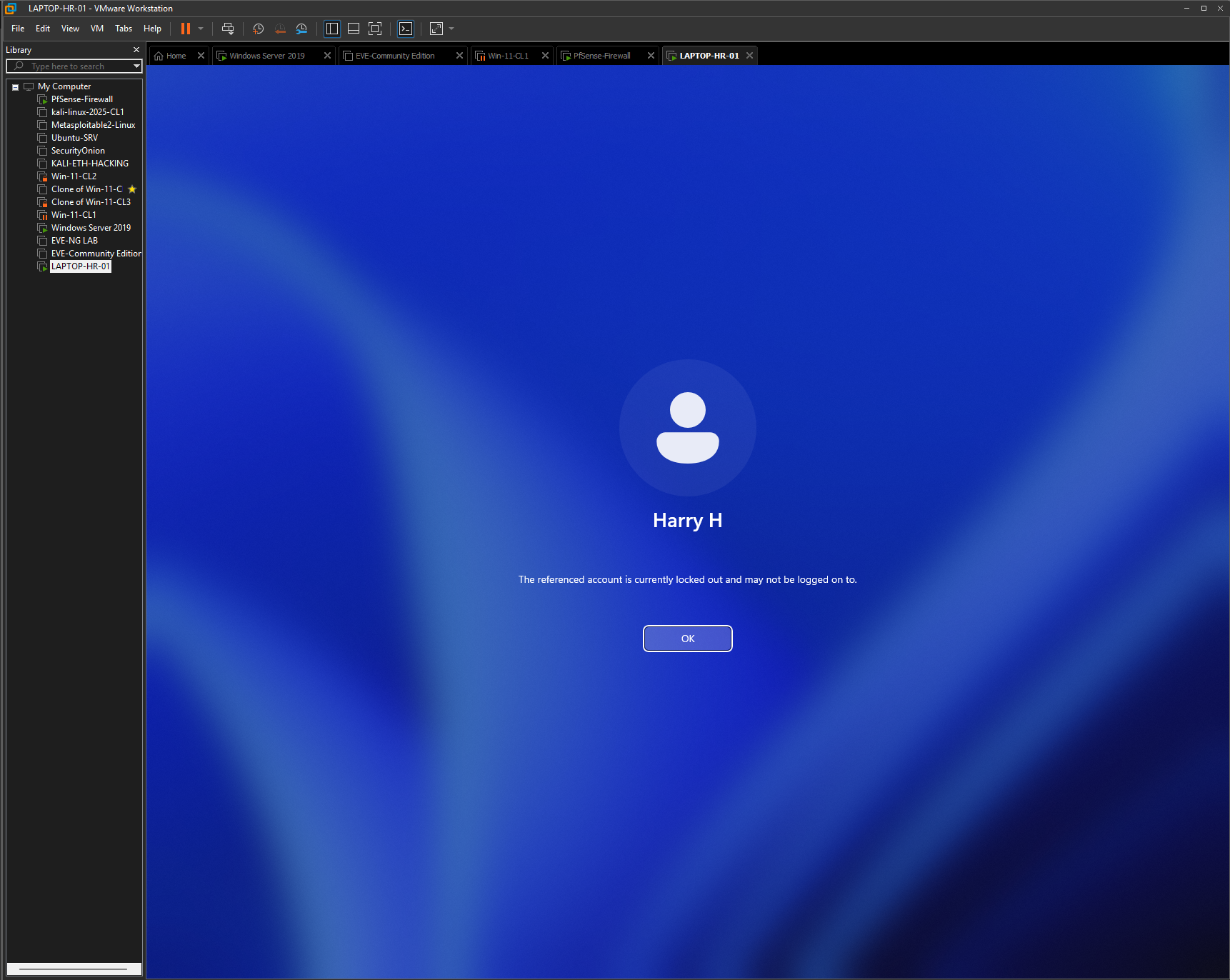
Figure 15 — Account lockout validated from the workstation.
The Windows sign-in screen displays the account lockout message for Harry H. This confirms that the domain security control was being enforced at the endpoint.
8.3 Confirming the Locked Account in Active Directory
I opened Harry H’s account properties in Active Directory Users and Computers. The Account tab showed that the account was currently locked out on the Active Directory Domain Controller and presented the option to unlock it.
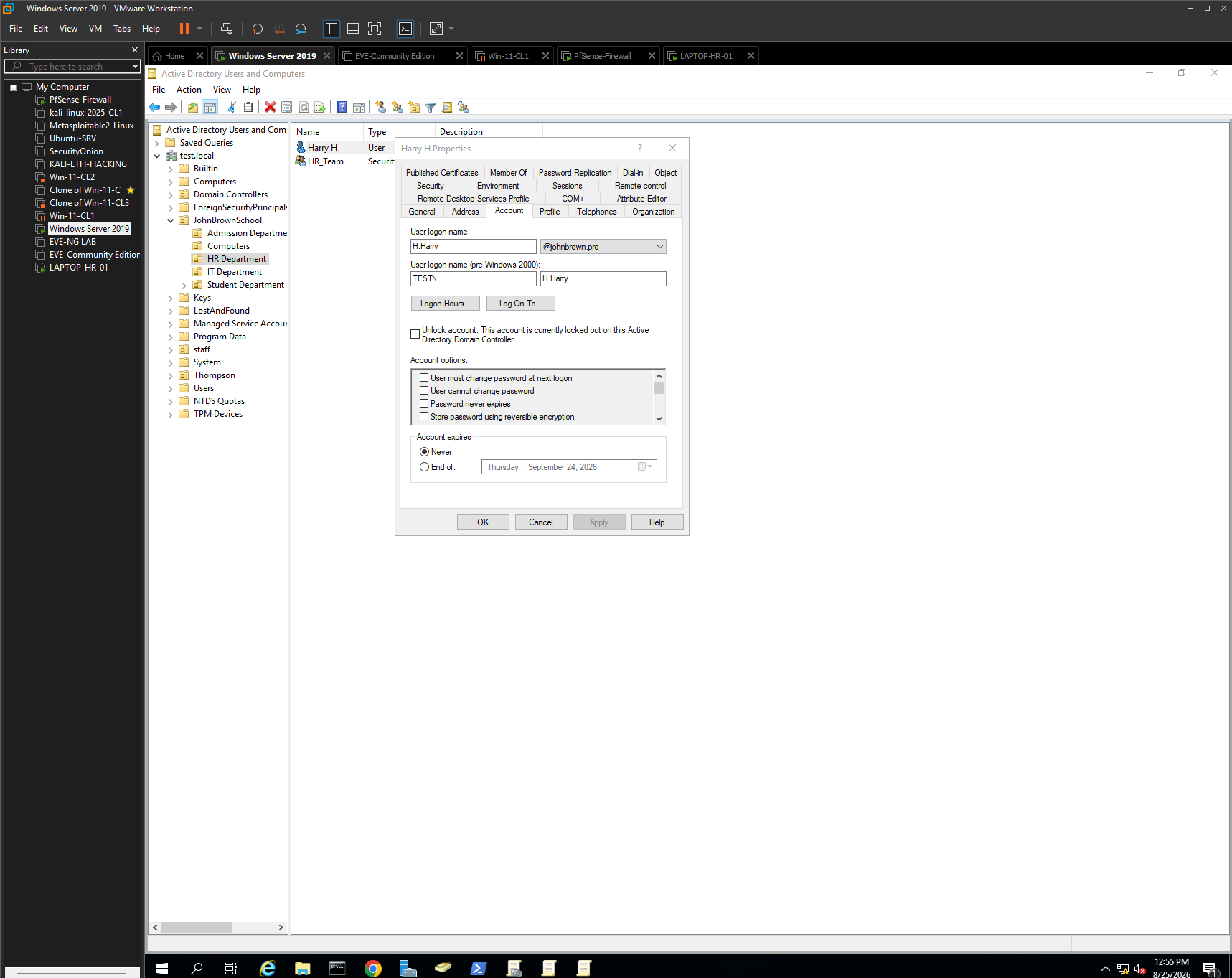
Figure 16 — Harry H shown as locked in Active Directory.
The Active Directory account properties confirm the server-side lockout state. This demonstrates that the failed authentication test affected the domain account rather than only the local Windows session.
8.4 Inspecting the Failed Password Counter
Using the Attribute Editor, I inspected Harry H’s account attributes. The badPwdCount value showed 5, matching the configured account lockout threshold.
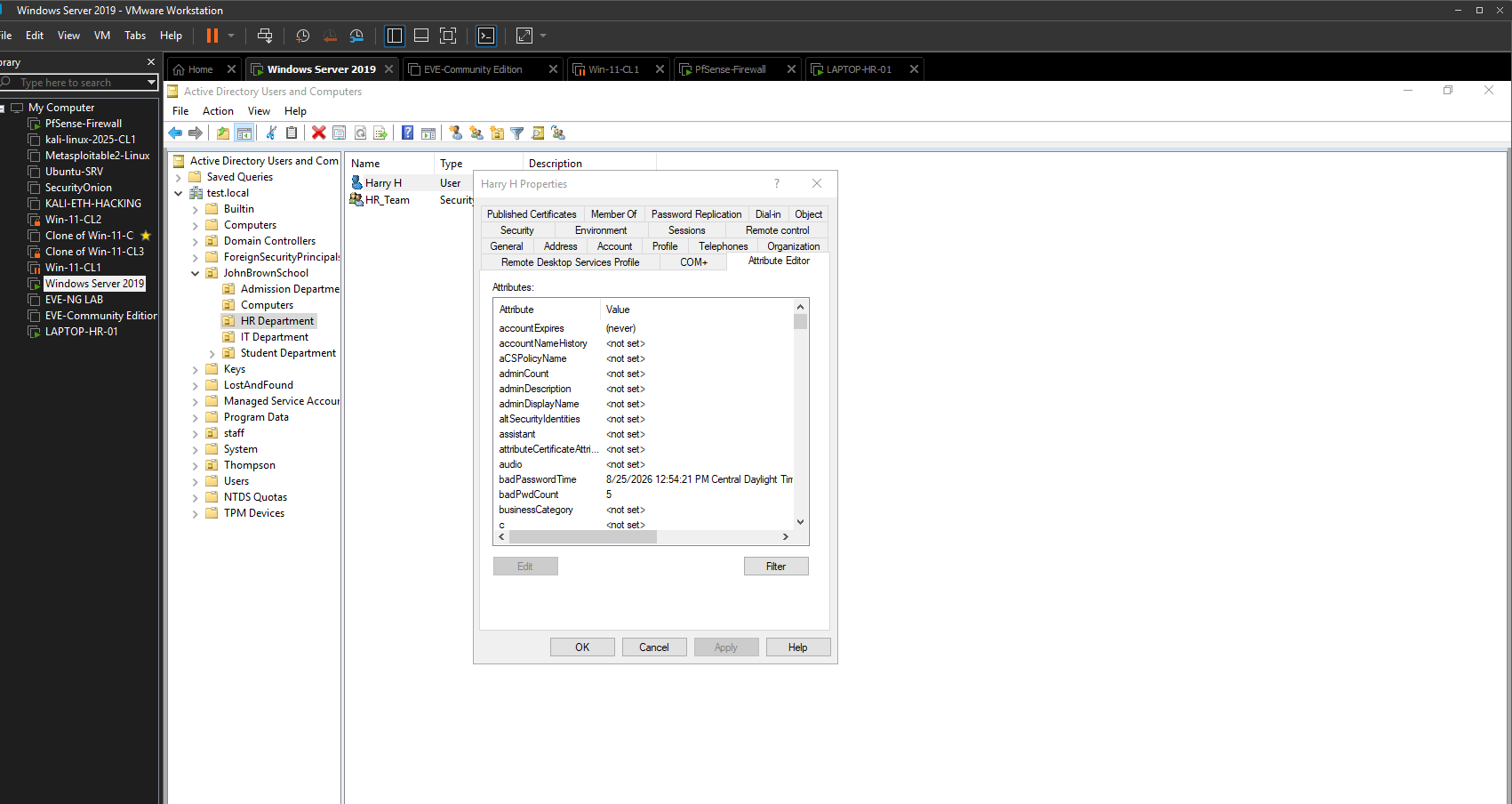
Figure 17 — badPwdCount confirms five failed password attempts.
The Active Directory attribute value provides additional technical evidence that the lockout occurred after the configured number of invalid authentication attempts.
8.5 Final Account Lockout Settings
The completed account lockout configuration showed:
Account lockout duration — 10 minutes
Account lockout threshold — 5 invalid logon attempts
Allow Administrator account lockout — Enabled
Reset account lockout counter after — 10 minutes
Figure 18 — Final account lockout policy.
The Group Policy Management Editor shows the completed lockout settings used in the lab. These settings define the threshold, duration and reset behavior for domain account lockouts.
8.6 End-User Lockout Experience
The lockout was also captured directly at the Windows 11 sign-in screen.
Figure 19 — Windows 11 account lockout message.
LAPTOP-HR-01 prevents Harry H from signing in and reports that the referenced account is currently locked out. This validates the policy from the user’s perspective.
Phase 6 — Domain Password Policy Hardening
9.1 Reviewing the Existing Password Policy
I reviewed the password settings in the Default Domain Policy before making changes. The initial configuration shown in the lab included:
Enforce password history — 24 passwords remembered
Maximum password age — 42 days
Minimum password age — 1 day
Minimum password length — 4 characters
Password must meet complexity requirements — Disabled
Store passwords using reversible encryption — Disabled
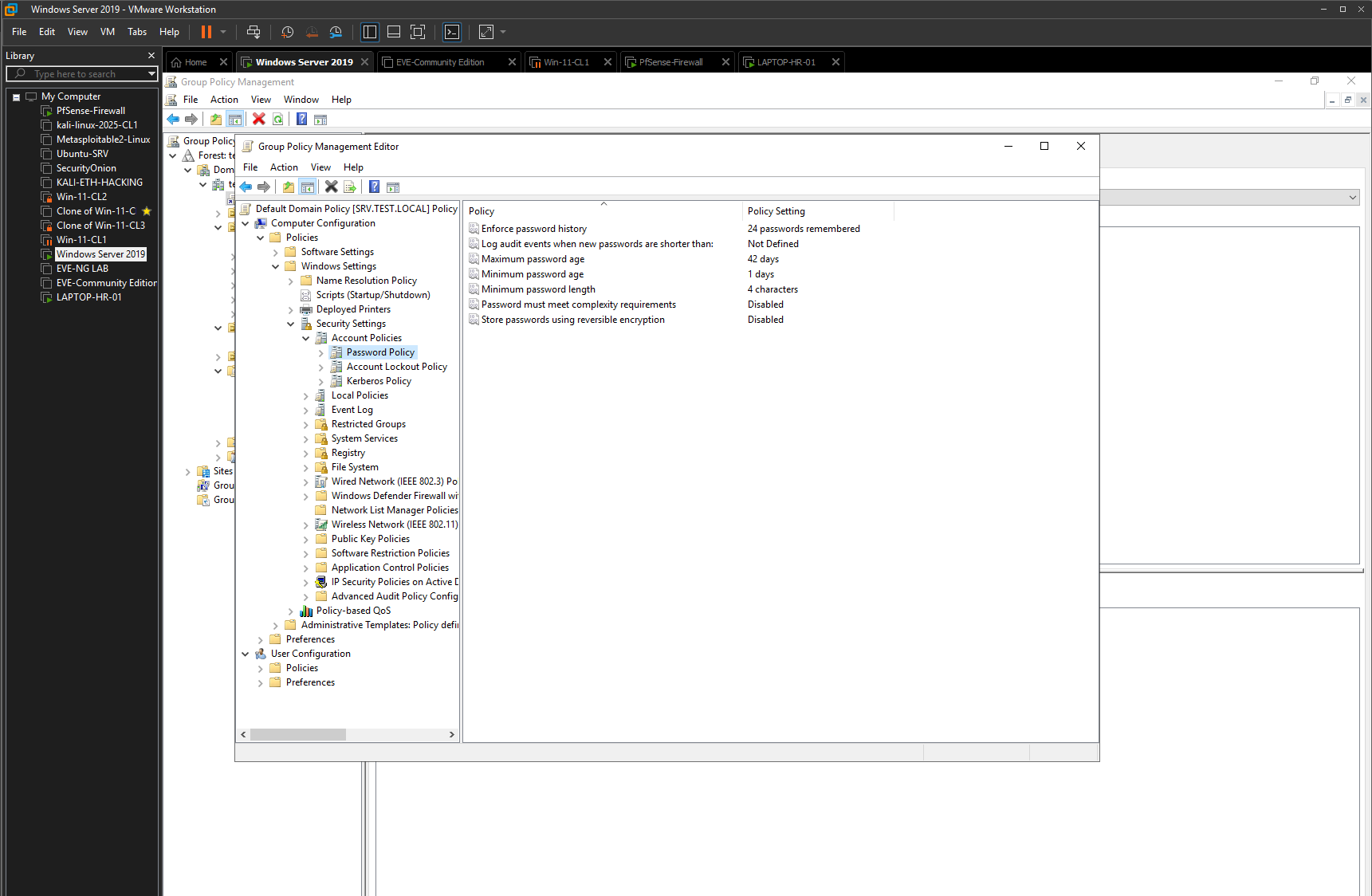
Figure 20 — Domain password policy before modification.
The Default Domain Policy shows the initial password requirements. The four-character minimum password length was selected for improvement as part of the security-hardening exercise.
9.2 Strengthening the Password Requirements
I changed the minimum password length from 4 characters to 12 characters. The final screenshot also shows the maximum password age set to 90 days, while password history remains at 24 remembered passwords and reversible encryption remains disabled.
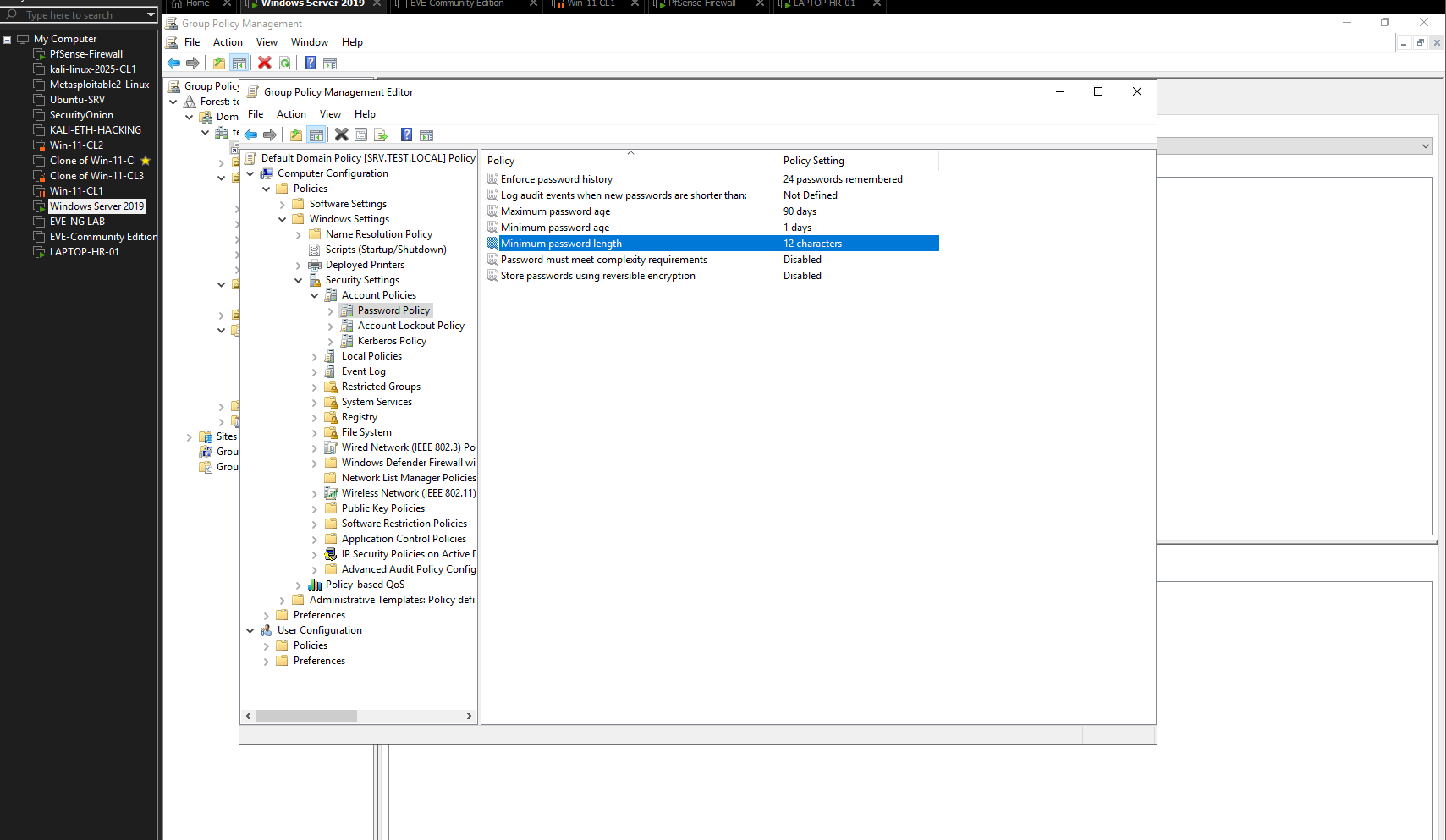
Figure 21 — Domain password policy after hardening.
The updated Default Domain Policy shows a 12-character minimum password length and 90-day maximum password age. This demonstrates centralized modification of domain-wide password requirements.
The screenshot shows Password must meet complexity requirements as Disabled, so this lab does not claim that password complexity was enabled.
End-to-End Validation
The completed workflow demonstrated the following Group Policy administration path:
Windows Server 2019 → Active Directory Domain Services → Group Policy Management → JohnBrownSchool OU → HR Department → Harry H → LAPTOP-HR-01
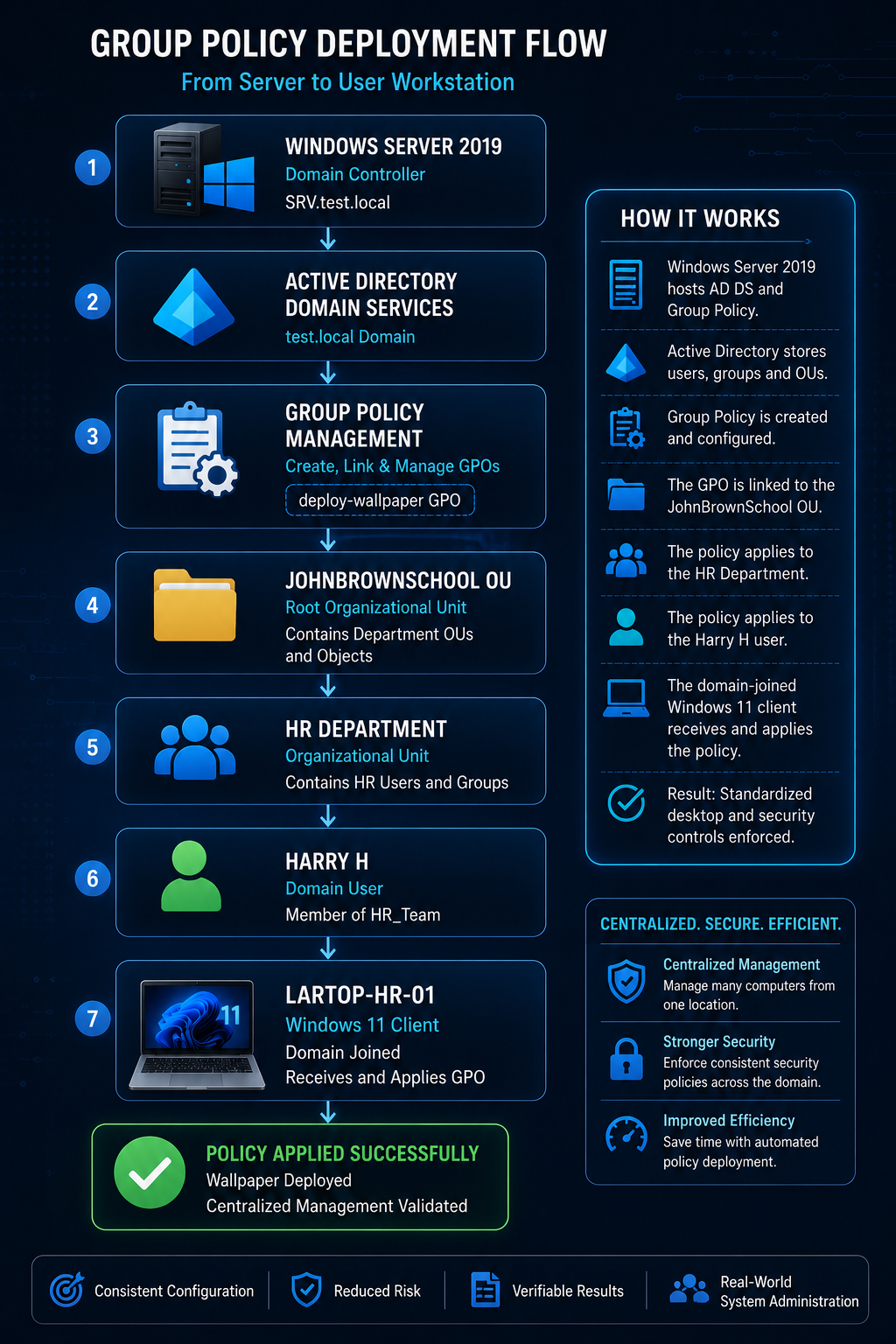
For the wallpaper deployment:
Shared Wallpaper Resource → deploy-wallpaper GPO → JohnBrownSchool OU Link → gpupdate /force → gpresult /r → Windows 11 Desktop
For domain security:
Default Domain Policy → Account Policies → Account Lockout and Password Requirements → Domain User Authentication
Troubleshooting and Administrative Learning
The most important troubleshooting scenario occurred during the wallpaper deployment. The GPO itself had been created and configured, but the workstation did not initially receive the policy.
Rather than assuming that the wallpaper configuration was incorrect, I used gpresult /r on LAPTOP-HR-01 to inspect the user’s Resultant Set of Policy information. Harry H was correctly identified as a domain user inside the HR Department OU, but Applied Group Policy Objects showed N/A.
I then returned to Group Policy Management and reviewed the JohnBrownSchool OU. The Linked Group Policy Objects tab was empty, revealing that deploy-wallpaper had not been linked to the OU containing the target user.
After linking deploy-wallpaper to JohnBrownSchool, I returned to LAPTOP-HR-01 and ran gpupdate /force. Both Computer Policy and User Policy completed successfully. A second gpresult /r then listed deploy-wallpaper under Applied Group Policy Objects, and the centrally managed wallpaper appeared on the Windows 11 desktop.
This troubleshooting sequence reinforced an important Group Policy concept: creating and configuring a GPO is only part of deployment. Successful processing also depends on scope, linking, inheritance, permissions, network access to required resources and client-side policy refresh.
The account lockout test provided a second administrative validation workflow. The policy was not considered successful simply because its settings appeared in Group Policy Management. I deliberately tested the behavior from the client, observed the lockout message, confirmed the locked state in Active Directory Users and Computers and inspected badPwdCount to verify that the failed-authentication counter matched the five-attempt threshold.
Technologies Used
VMware Workstation • Windows Server 2019 • Active Directory Domain Services • Active Directory Users and Computers • Group Policy Management Console • Group Policy Management Editor • Windows 11 • PowerShell • gpupdate • gpresult • Windows file sharing • NTFS permissions • Default Domain Policy • Account Lockout Policy • Password Policy
Key Takeaways
This project demonstrated how Active Directory Group Policy can move Windows administration from individual endpoint configuration to centralized domain management. Instead of manually configuring each workstation, I used a domain GPO to control a user desktop setting and validated the result from a Windows 11 client.
The strongest technical lesson from the project was understanding the difference between configuring a GPO and actually applying it. A valid policy can have no effect if it is not linked to the correct scope. Using gpresult /r made it possible to verify exactly which policies the user was receiving, while gpupdate /force provided a controlled way to trigger policy processing during troubleshooting.
The security portion of the lab demonstrated that Group Policy can also enforce domain-wide authentication controls. The five-attempt lockout threshold was validated from the workstation, Active Directory account state and badPwdCount attribute. The password-policy exercise further demonstrated centralized modification of password requirements through the Default Domain Policy.
Overall, the lab strengthened practical skills in Group Policy creation, linking, inheritance, shared-resource permissions, client-side policy processing, Resultant Set of Policy verification, Active Directory account administration and domain security hardening.
Lab Summary
Project: Windows Server Active Directory Group Policy Administration and Security Hardening
Role: System Administrator
Environment: VMware Workstation, Windows Server 2019, Active Directory Domain Services, Group Policy Management and Windows 11
Domain: test.local
Target OU: JohnBrownSchool
Test User: Harry H
Test Endpoint: LAPTOP-HR-01
Outcome: Configured and validated centralized Group Policy administration in the JohnBrownSchool Active Directory environment, deployed a desktop wallpaper from a server-hosted resource, diagnosed and corrected a missing GPO link using gpresult and gpupdate, implemented and tested a five-attempt account lockout policy, verified the lockout in Active Directory, and strengthened the Default Domain Policy with a 12-character minimum password length.
0 Comment